Key Takeaways for Modern Data Backups
- The 3-2-1-1-0 rule is the modern standard, adding immutable copies and zero errors (verified testing) to traditional strategies.
- Rclone provides powerful, client-side encrypted cloud backups for over 50 storage providers, making it a versatile tool for automation.
- Client-side encryption and robust key management are non-negotiable for data privacy and regulatory compliance (GDPR, HIPAA).
- Regular recovery testing, from spot checks to full drills, is essential to validate your backup strategy's effectiveness and achieve defined RPOs/RTOs.
- Automate monitoring and alerting for your backup jobs to catch failures early, and implement cost optimization strategies like intelligent tiering.
Your Definitive 2026 Guide to Secure, Automated Data Backups
Establishing a robust, automated data backup system is more critical than ever in 2026.
Faced with sophisticated ransomware, rapidly growing data volumes from AI and IoT, and stringent privacy regulations, a casual approach to protecting your digital assets is simply inadequate.
This guide walks you through setting up a secure, automated cloud backup using tools like Rclone, emphasizing client-side encryption and rigorous testing to ensure your data is always protected.
The 2026 Data Backup Landscape: Why 3-2-1 is Still King
The data challenges of 2026 are clear: data is both more valuable and more vulnerable.
Outdated methods, such as manually copying files to a single external hard drive or relying solely on basic file-sync services, are dangerously insufficient.
File-sync services, for instance, often replicate deletions or ransomware encryption, undermining their effectiveness as a true backup.
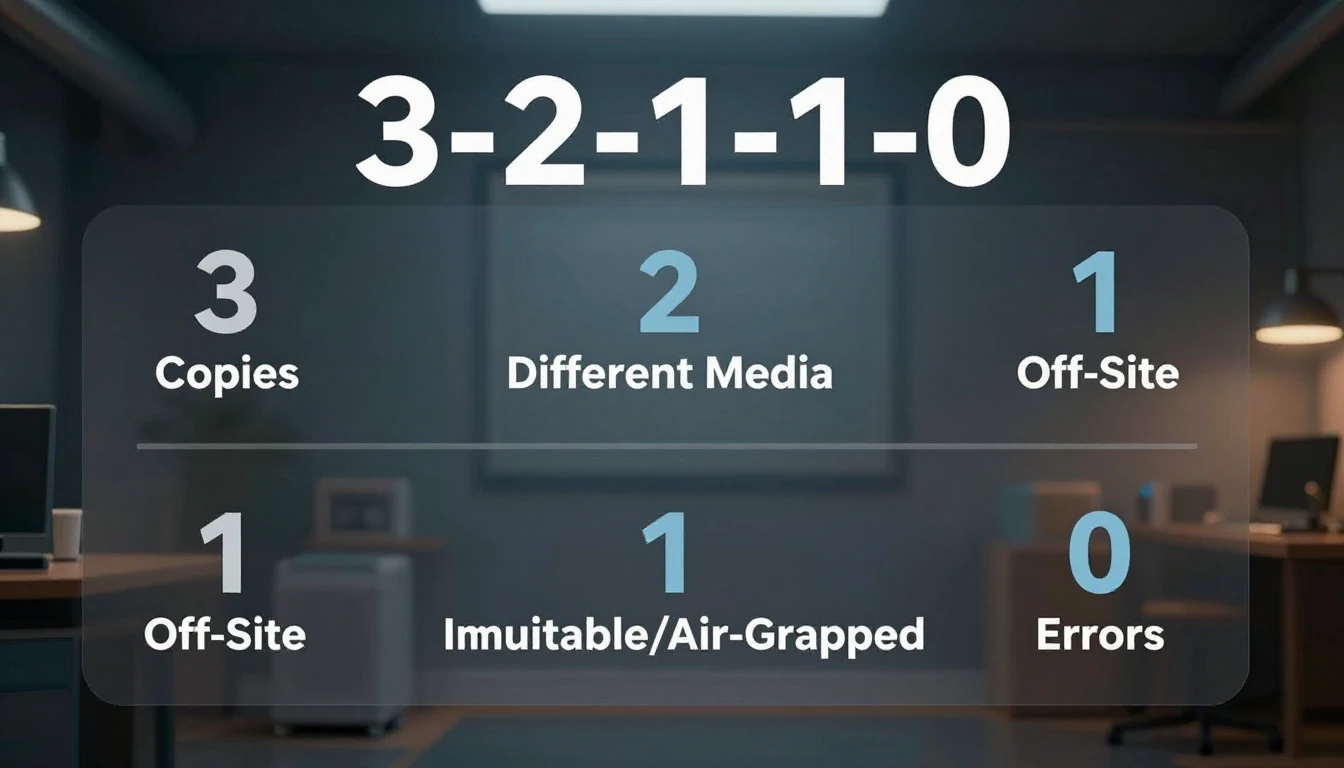
The gold standard for data protection remains the 3-2-1 Rule, which has evolved to address current threats:
- 3 Copies of Your Data:
Always maintain the original data plus at least two separate backups. - 2 Different Media Types:
Store your backups on at least two distinct types of storage.
This protects against the failure of a single storage medium.
For example, you might use your computer's internal SSD and an external Network Attached Storage (NAS) device. - 1 Copy Off-Site:
Keep at least one copy of your data in a geographically separate location.
This protects against physical disasters like fire, flood, or theft.
In 2026, cloud storage is the most practical and scalable solution for off-site storage.
Many experienced users now advocate for an enhanced 3-2-1-1-0 Rule:
- 1 Immutable or Air-Gapped Copy:
Include a copy that cannot be altered or deleted once written.
This is crucial for protecting against sophisticated ransomware attacks that target and encrypt backup repositories.
Cloud providers offer features like AWS S3 Object Lock or robust versioning to achieve immutability. - 0 Errors:
Your backup system is worthless if it has never been tested.
Regular, verified recovery tests are not optional; they are mandatory to ensure data integrity and restore capability.
Automation and security form the bedrock of any modern strategy.
Backups must run automatically without requiring human intervention, and your data must be encrypted both in transit and at rest to ensure privacy and compliance with regulations.
Choosing Your Tools: Cloud Providers, Software, and Storage Tiers
Selecting the right combination of tools is essential for building a secure, scalable, and cost-effective backup system.
Cloud Storage Providers
Your off-site copy will almost certainly reside in the cloud.
Here are some leading providers you might consider in 2026:
| Provider | Key Strengths & Considerations | Ideal Use Case |
|---|---|---|
| AWS S3 | A mature ecosystem with granular security (IAM), multiple storage tiers (Standard, Glacier Instant Retrieval, Glacier Deep Archive), and features like Object Lock for immutability. Be aware that egress (data download) fees can be high. |
Enterprises, applications already within the AWS ecosystem, users needing fine-grained control and compliance. |
| Azure Blob Storage | Offers strong integration with the Microsoft ecosystem (Windows Server, Microsoft 365), competitive storage tiers (Hot, Cool, Archive), and robust security features. | Businesses heavily invested in Microsoft services, large-scale enterprise backups. |
| Google Cloud Storage (GCS) | Known for high performance, simple pricing with consistent tiers (Standard, Nearline, Coldline, Archive), and excellent capabilities for large-scale data analytics pipelines. | Developers, data-intensive applications, and users already within the Google Cloud ecosystem. |
| Backblaze B2 | Features aggressively low storage pricing and a generous free egress allowance each month. It provides a simple, no-frills API. This is a very popular choice for pure backup storage where cost-effectiveness is key. |
Individuals, small businesses, and anyone looking for the most cost-effective solution for large backups where frequent restores are not regularly expected. |
Local Storage
For your second on-site copy, a Network Attached Storage (NAS) device from brands like Synology or QNAP is an excellent choice.
These devices provide centralized, redundant storage via RAID configurations and often come with their own suite of backup applications, simplifying local management.
Backup Software
This is the engine that truly automates your backup process.
Command-line tools generally offer the most power and flexibility.
- Rclone ("rsync for cloud storage"):
This guide focuses on Rclone, a powerful command-line tool supporting over 50 cloud storage backends.
Its key feature is thecryptwrapper, which provides transparent, client-side encryption, a crucial security component.
You can find its Official Documentation here. - Duplicati:
An open-source, GUI-based backup client that supports various backends, AES-256 encryption, and incremental, block-based backups to save storage space.
This is a great choice for those who prefer a graphical interface over the command line. - BorgBackup:
Highly regarded for its exceptional speed and deduplication capabilities, BorgBackup is highly efficient for backing up data with many similar files, such as code repositories or system directories.
It is secure and primarily used in Linux/macOS environments.
Refer to the Official Documentation for more details.
Step-by-Step: Secure, Automated Cloud Backup with Rclone
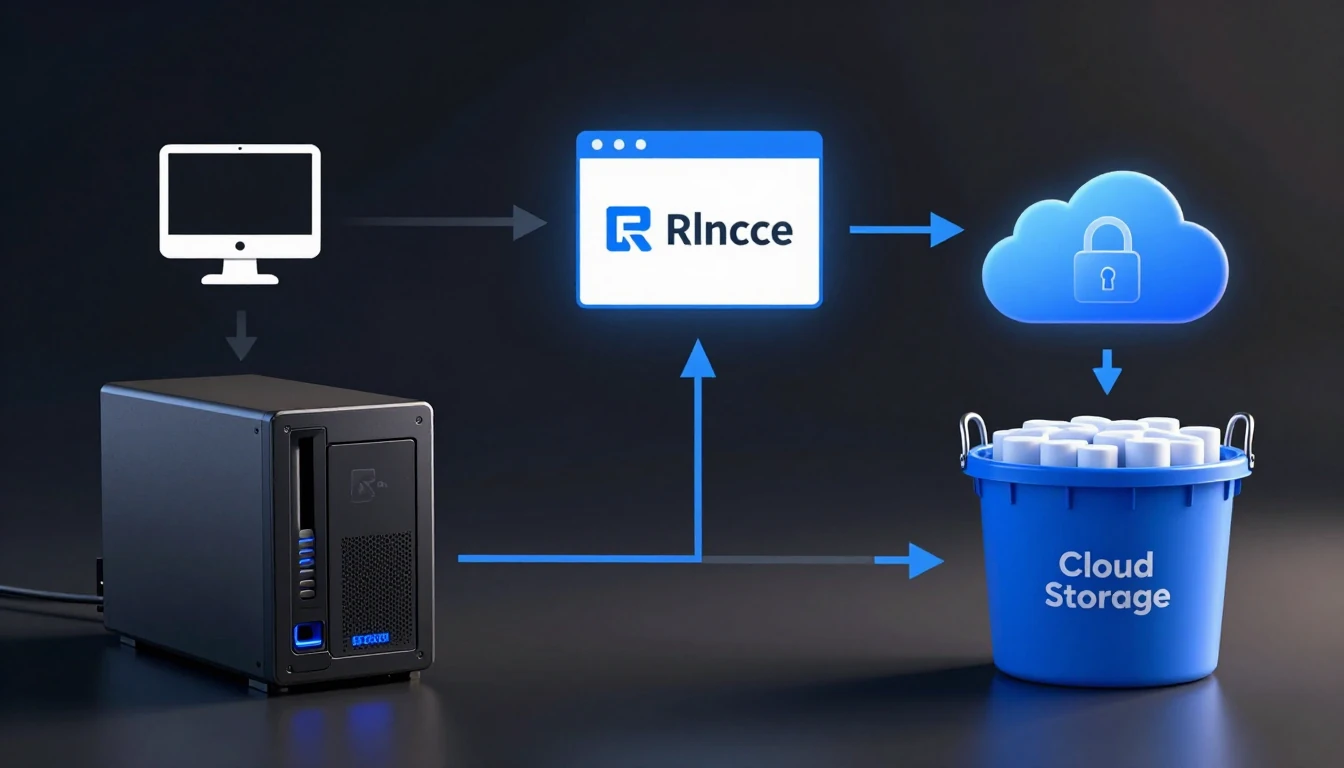
This tutorial demonstrates how to set up an encrypted, automated backup from a local directory to Backblaze B2 using Rclone.
Step 1: Install and Configure Rclone
- Install Rclone:
Follow the official installation instructions for your operating system from the Rclone website. - Configure B2 Remote:
Runrclone configin your terminal.
- Choose
nto create a new remote. - Name it, for example,
b2_backend. - Select the specific type for Backblaze B2 from the list.
- Enter your
applicationKeyIdandapplicationKey, which you obtain from your B2 account.
Rclone will guide you through the remaining prompts.
- Choose
Step 2: Set Up the Encrypted Remote
This is a crucial step for ensuring your data's security and privacy.
You will create a new remote that wraps your previously configured b2_backend with client-side encryption.
- Run
rclone configagain. - Choose
nfor a new remote.
Name it, for instance,b2_encrypted. - For the storage type, select
crypt. - When prompted for the remote to encrypt, enter
b2_backend:/my-backup-bucket, replacingmy-backup-bucketwith the actual name of your B2 bucket. - Choose your desired filename encryption level; Standard is generally recommended.
- Password Management: You will be prompted to create a strong password and an optional salt.
DO NOT LOSE THESE.
Store them securely in a reputable password manager.
This password is your only key to decrypting your data.

Step 3: Run Your First Backup
To sync your local ~/Documents folder to the encrypted remote, use the sync command.
This command ensures the destination exactly matches the source, deleting files in the destination if they are removed locally.
rclone sync ~/Documents b2_encrypted:documents --progress
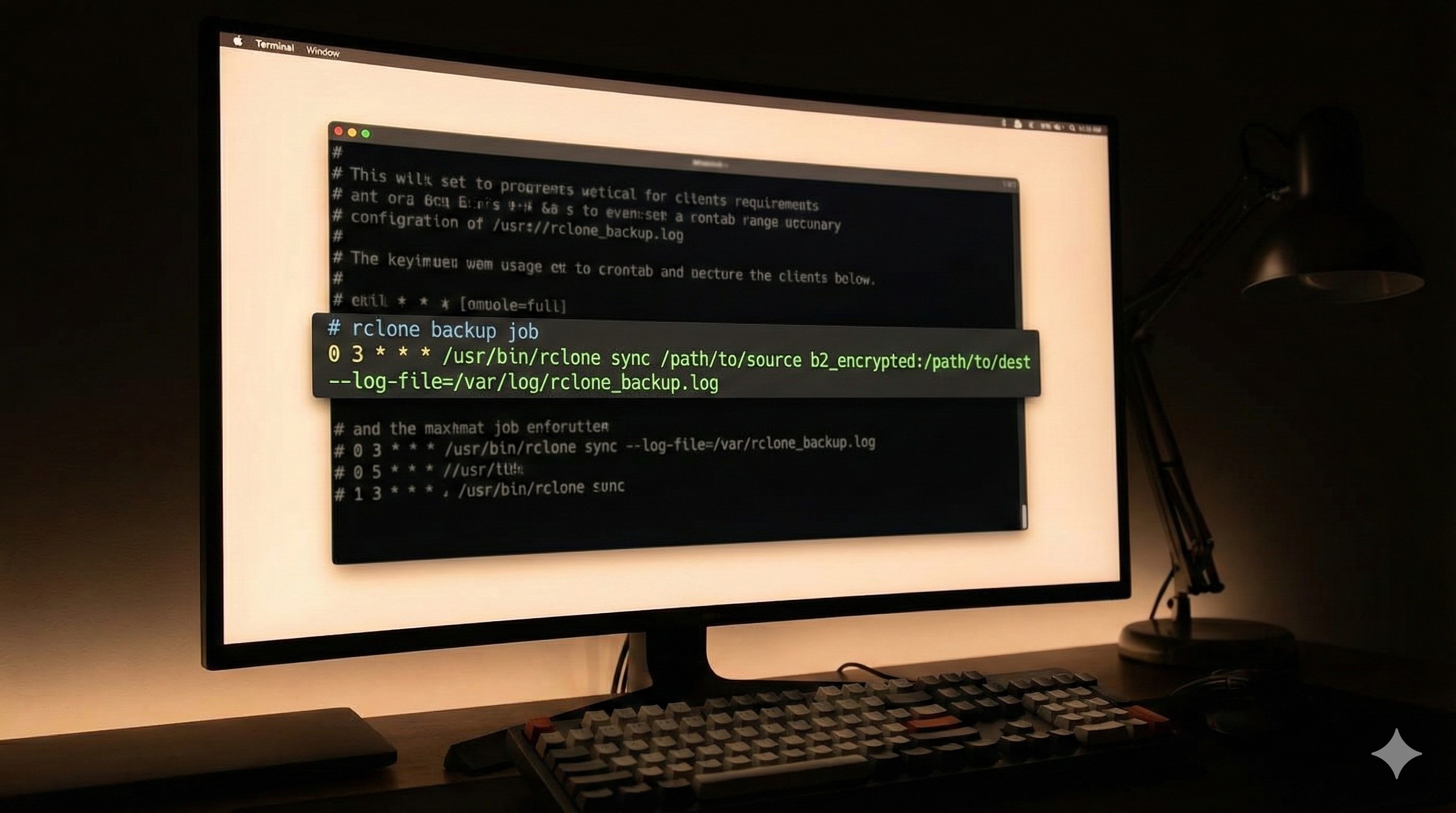
Step 4: Automate with Cron (Linux/macOS)
Cron is a classic method for scheduling tasks on Linux and macOS systems.
- Open your crontab for editing by typing:
crontab -e - Add a line to run the backup daily at 2:05 AM and direct the output to a log file:
5 2 * * * /usr/bin/rclone sync /path/to/your/data b2_encrypted:backup-folder --log-file /var/log/rclone_backup.log
Note: For more advanced scheduling and dependency management on most modern Linux distributions, using a systemd timer is the current best practice, offering better logging and integration with system services.
Step 5: Implement a Simple Retention Policy
Rclone can move older versions of files into an archive instead of simply deleting them.
This provides a basic level of version history for your backups.
rclone sync /path/to/data b2_encrypted:current --backup-dir b2_encrypted:archive/`date +%Y-%m-%d`
This command works by moving any files that would be updated or deleted from the current directory into a timestamped archive directory, effectively preserving those older versions.
Implementing Robust Encryption and Key Management Strategies
Simply backing up your data is not enough; it must be demonstrably private and secure.
Client-side encryption, where your data is encrypted on your local machine *before* it is uploaded to the cloud, is a non-negotiable component of a modern backup strategy.
- Why Client-Side?
With server-side encryption, the cloud provider holds the encryption keys and could potentially be compelled to decrypt your data.
With client-side encryption, like Rclone'scryptfeature, the provider only ever stores unintelligible ciphertext.
You, and only you, hold the keys to your data. - Secure Key Management:
The password for your Rclonecryptremote acts as the master key to your encrypted data.
- DO: Store this password in a reputable, end-to-end encrypted password manager (e.g., Bitwarden, 1Password).
- DO NOT: Store it in a plaintext file on the same server, in your shell history, or directly embedded in your source code.
- Advanced: For enterprise environments or highly sensitive data, consider leveraging a Hardware Security Module (HSM) or a managed key service like AWS KMS to protect the encryption keys used by your backup scripts.
- Compliance (GDPR, HIPAA):
Implementing client-side encryption is a foundational step towards achieving compliance with privacy regulations such as GDPR and HIPAA.
It ensures that you, as the data controller, are the only party with access to the unencrypted personal or health information.
From Setup to Recovery: The Critical Importance of Testing
A backup strategy remains purely theoretical until you have successfully performed a data restore.
Understanding your Recovery Point Objective (RPO) and Recovery Time Objective (RTO) is key to defining your testing needs.
- Recovery Point Objective (RPO):
This defines the maximum acceptable amount of data loss, measured in time.
If you back up daily, your RPO is typically 24 hours. - Recovery Time Objective (RTO):
This defines the maximum acceptable time to restore your data and services after a disaster or data loss event.
Practical Testing Procedures:
- Integrity Check:
Regularly runrclone check source:/path destination:/pathto verify that the files on your source and destination match in size and hash.
Consider adding this command to your regular cron job to automate integrity verification. - Spot Restore:
Once a month, choose a random file or a small, non-critical directory and perform a full restore of that data.
After restoring, verify its contents to ensure the data is intact and usable. - Full Recovery Drill:
At least once a year, simulate a total loss scenario.
This involves provisioning a new, clean machine or virtual machine and attempting to restore your entire backup set.
This comprehensive drill tests not only the data integrity but also your entire recovery process, including locating your encryption keys and reinstalling necessary software.

Common Backup Pitfalls & How to Troubleshoot Them Effectively
Even with careful setup, you might encounter issues.
Understanding common pitfalls and how to troubleshoot them can save significant time and stress.
- Permission Errors (Linux/macOS):
Your cron job often runs as a different user (e.g.,root) than your interactive shell.
Ensure that the backup script has appropriate read permissions on the source data and write permissions for any log files.
Always use absolute paths in your scripts to avoid ambiguity. - Cloud API Rate Limits (HTTP 429 Errors):
Making too many requests to a cloud provider's API too quickly can result in temporary blocks.
Use Rclone's--tpslimitflag (e.g.,--tpslimit 10) to control the transaction rate and stay within the API's limits. - Network Failures:
Intermittent network connections can interrupt large transfers.
Rclone is designed to be resilient and will automatically retry failed transfers.
You can fine-tune this behavior with flags like--retriesand--retries-sleepto match your network environment. - Insufficient Storage:
Regularly monitor your local disk space and your cloud bucket size.
Set up billing alerts in your cloud provider's console to avoid unexpected costs due to storage overages. - Corrupted Backup Sets:
This can occur due to failing hardware (local disk or RAM) during the backup process.
Regular integrity checks usingrclone checkare your primary defense against corrupted data.
Integrating Backups with Modern DevOps & Cloud Stacks
Data no longer lives solely in a ~/Documents folder.
A robust backup strategy must account for the complexities of modern infrastructure.
- Containerized Applications (Kubernetes):
For applications running in Kubernetes, you must back up the stateful data stored in Persistent Volume Claims (PVCs).
The industry-standard tool for this is Velero.
Velero integrates with cloud provider APIs to take snapshots of persistent volumes and stores them, along with Kubernetes object definitions (like Deployments and Services), in object storage like S3.
Your Rclone strategy can then back up *other* application data, but Velero is purpose-built for Kubernetes state. - Databases: Never back up live database files directly.
This will almost certainly result in a corrupt, unusable backup due to active writes.
Always use the database's native dump utility to create a consistent snapshot:
- PostgreSQL: Use
pg_dump. - MySQL/MariaDB: Use
mysqldump. - MongoDB: Use
mongodump.
.sqlor archive file.
Then, use Rclone to upload that static file to your encrypted cloud storage. - PostgreSQL: Use
- Infrastructure as Code (IaC):
Your backup infrastructure itself – including S3 buckets, IAM policies, and even the virtual machine running the backup script – should be defined in code using tools like Terraform or CloudFormation.
This approach makes your entire backup system reproducible, auditable, and version-controlled.
Monitoring, Alerting, and Cost Optimization for Cloud Backups
An automated backup system requires automated oversight.
Without proper monitoring, a backup failure can go unnoticed for weeks, leading to potential data loss.
Monitoring and Alerting
Do not let your backup fail silently.
- Cron Job Monitoring:
Wrap your Rclone command in a shell script that sends a notification upon completion.
You can use a service like Healthchecks.io or a self-hosted tool like Uptime Kuma.
These services expect a "ping" when your job successfully completes and will alert you if that ping doesn't arrive on schedule. - Slack/Email Notifications:
Your wrapper script can usecurlto post a message to a Slack webhook or use themailcommand to send an email on success or failure, including relevant log file output in case of an error.

Cost Optimization
While cloud storage is generally inexpensive, costs can grow unexpectedly if not managed.
- Intelligent Tiering:
Utilize cloud provider lifecycle policies to automatically transition data to cheaper storage tiers as it ages.
For example, in AWS S3, a policy might move backups:
- After 30 days: from
S3 StandardtoS3 Glacier Instant Retrieval. - After 90 days: from
Glacier Instant RetrievaltoGlacier Deep Archive(often the cheapest tier, suitable for long-term compliance or archival).
- After 30 days: from
- Choose the Right Provider:
If your primary concern is cost and egress fees, Backblaze B2 is often the most economical choice.
If you require deep integration with a specific cloud ecosystem, stick with AWS, Azure, or GCP, but be continuously mindful of their data transfer costs. - Deduplication:
For backup sets with high redundancy (e.g., daily full backups of a filesystem with many similar files), consider using a deduplication tool like BorgBackup *before* uploading to the cloud.
You can create a local Borg repository, and then use Rclone to sync that entire repository (which is already deduplicated and compressed) to your cloud storage.
This strategy combines Borg's efficiency with Rclone's versatile cloud connectivity.


