Key Takeaways for Modern Google Photos Management
- Proactive Curation & AI Integration: Google Photos in 2026 is no longer just a backup service.
It emphasizes intelligent organization through Live Albums, Locked Folders, and powerful multimodal search. - Seamless Cross-Device Setup: Proper configuration on Android, iOS, and desktop ensures an automatic and private backup experience.
Google Drive for desktop now handles PC photo backups. - AI-Powered Editing (Google One Essential): Advanced tools like Magic Editor, Magic Eraser, and Photo Unblur require a Google One subscription to transform your photos with generative AI.
- Strategic Storage Management: With free unlimited storage gone, understanding your 15 GB quota, Google One plans, and optimization tools (like 'Manage storage' and 'Storage saver') is critical to avoid extra costs.
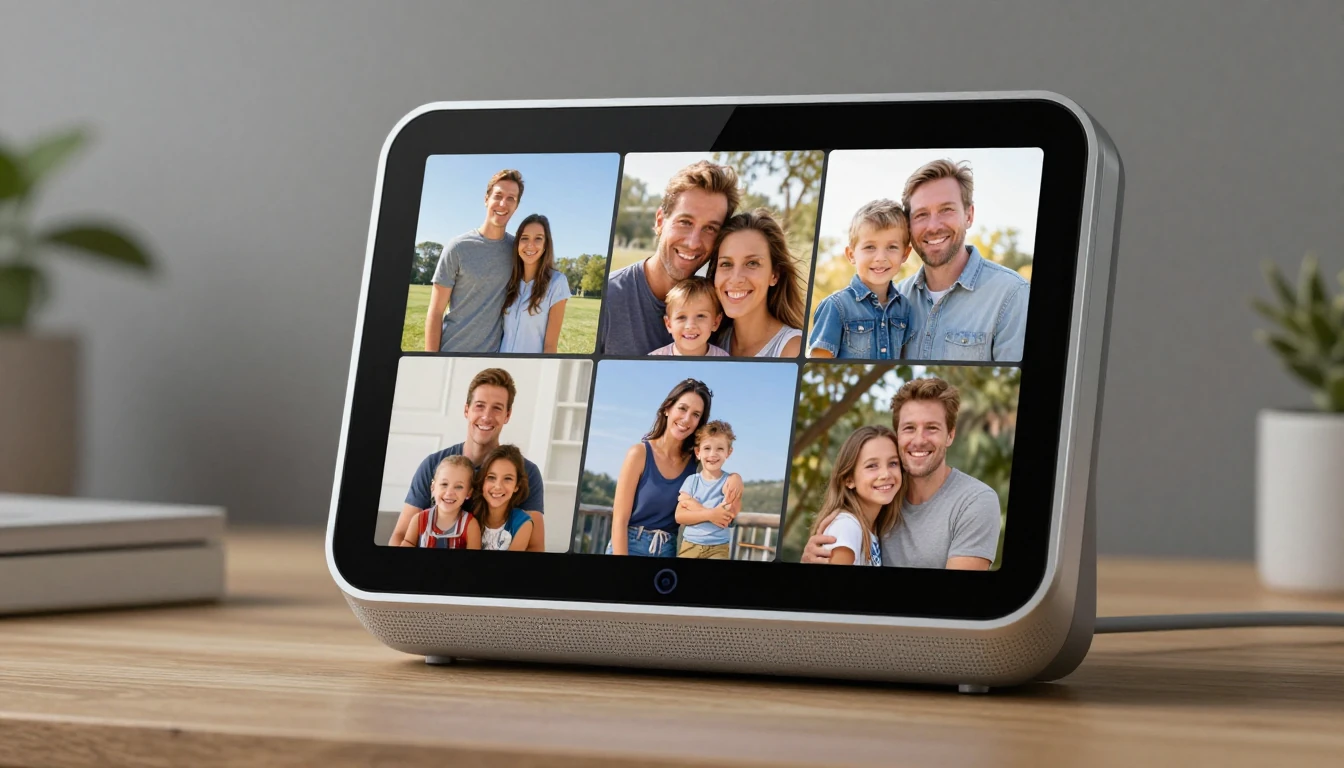
- Integrated Smart Home & Sharing: Leverage Google Photos to display memories on Nest Hubs, Chromecasts, and third-party frames.
Collaborate easily with shared albums and automated Partner Sharing.
Google Photos remains an essential tool for managing digital memories, and in 2026, it offers more than just cloud storage.
This comprehensive guide explores modern best practices for organization, essential device setup, powerful AI editing features, and crucial storage management techniques.
Discover how to optimize your Google Photos experience, ensuring your photos are safely backed up, intelligently organized, and easily accessible across all your devices.
1. Google Photos 2026: Modern Management & Best Practices
The approach to managing digital photos has evolved significantly.
Gone are the days of simply dumping every single image into the cloud.
Modern best practices in Google Photos focus on smart curation, automation, and intelligent access to prevent cluttered libraries.
Outdated Methods vs. 2026 Best Practices:
- Outdated:
Backing up everything, including screenshots and blurry images, leading to a cluttered library. - Modern Practice: Proactive Curation.
Use Google Photos' built-in tools (found under Library > Utilities > Clean up photos) to regularly review and delete unwanted shots.
Enable backup only for essential folders, specifically excluding downloads or screenshots to maintain a cleaner library. - Outdated:
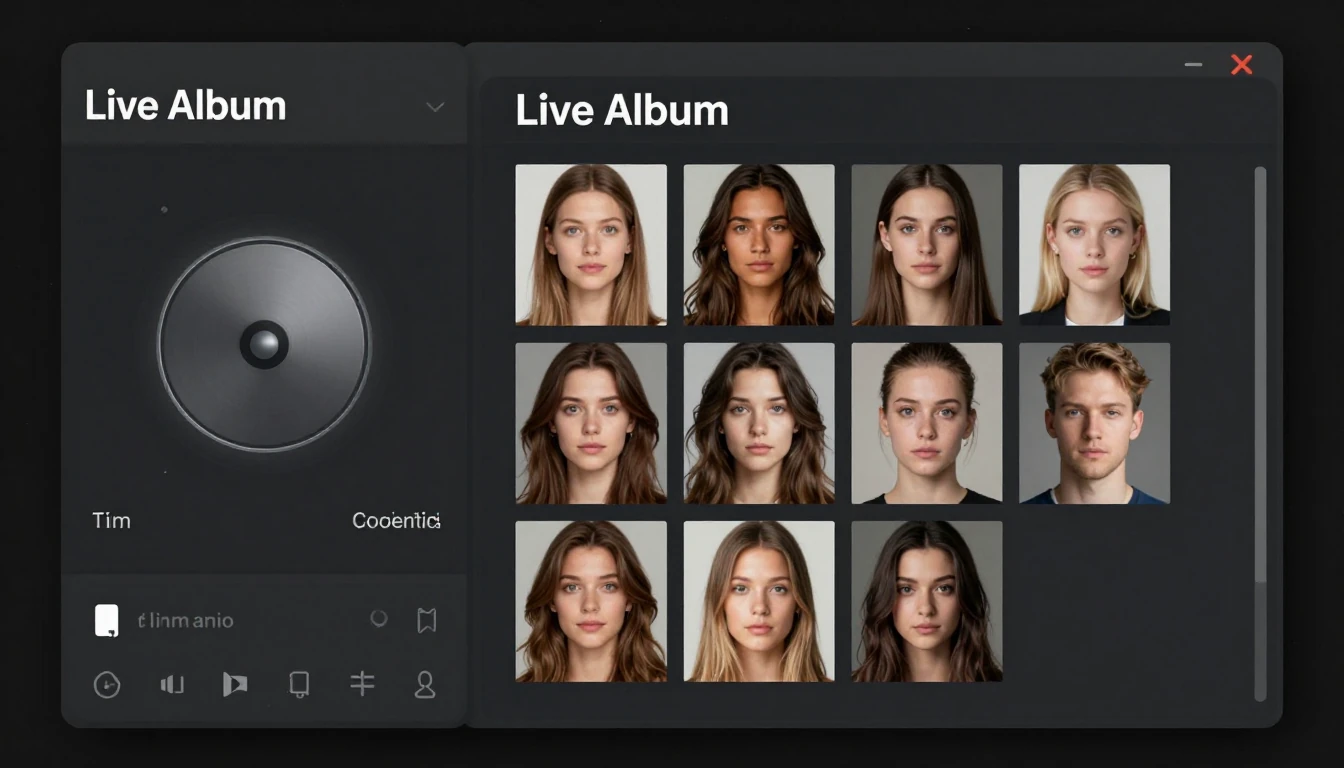
Manually creating albums for every event. - Modern Practice: Leveraging AI-Powered 'Live Albums'.
Create an album for specific people (e.g., 'Kids').
Google Photos will then automatically add new photos of them as they are backed up.
This keeps key albums effortlessly updated without manual intervention.
- Outdated:
Keeping sensitive photos in the main library. - Modern Practice: Utilizing the 'Locked Folder'.
Move sensitive documents, IDs, or private photos to the Locked Folder (accessible via Library > Utilities > Locked Folder).
These photos will not appear in the main grid, memories, or other apps and are protected by your device's screen lock. - Important Note:
Photos within the Locked Folder are not backed up to the cloud and will be permanently lost if you delete the app or reset your device without moving them out first.
- Outdated:
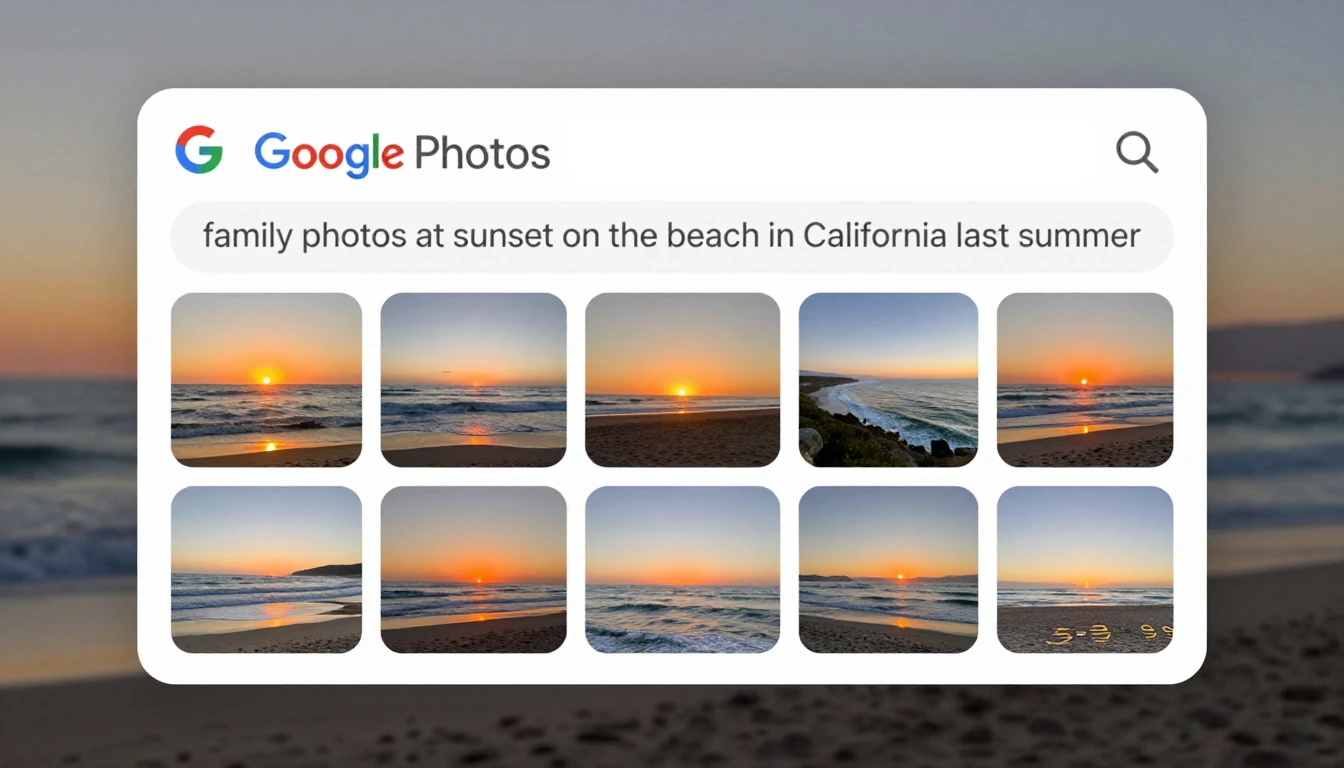
Scrolling endlessly to find a specific photo. - Modern Practice: Mastering Multimodal Search.
The search capabilities in 2026 are exceptionally powerful.
Instead of simple keyword searches like 'beach', you can search for complex concepts such as "family photos at sunset on the beach in California last summer" to yield highly accurate and relevant results.
2. Essential Setup: Preparing Your Devices for Google Photos (2026)
A proper initial setup is crucial for ensuring a seamless, automatic, and private experience across all your devices.
A. For Android Devices:
- Open Google Photos:
The app is typically pre-installed on Android devices. - Access Settings:
Tap your Profile Picture in the top-right corner, then navigate to Photos settings > Backup. - Turn Backup On:
Ensure the backup toggle is activated. - Configure Settings:
- Backup quality:
Choose between 'Storage saver' (slightly reduced quality to save space) or 'Original quality' (full resolution, which uses more storage). - Mobile data usage:
Set a daily limit or disable this option entirely to back up photos only when connected to Wi-Fi. - Back up device folders:
Select which specific device folders (e.g., WhatsApp Images, Screenshots) you wish to include or exclude from your backup.
- Backup quality:
- Enable Face Grouping:
Go to Photos settings > Group similar faces and activate 'Face grouping'.
This feature is essential for organizing photos by person and for the functionality of Live Albums.
B. For iOS Devices (iPhone/iPad):
- Download Google Photos:
If not already installed, download it directly from the Apple App Store. - Grant Permissions:
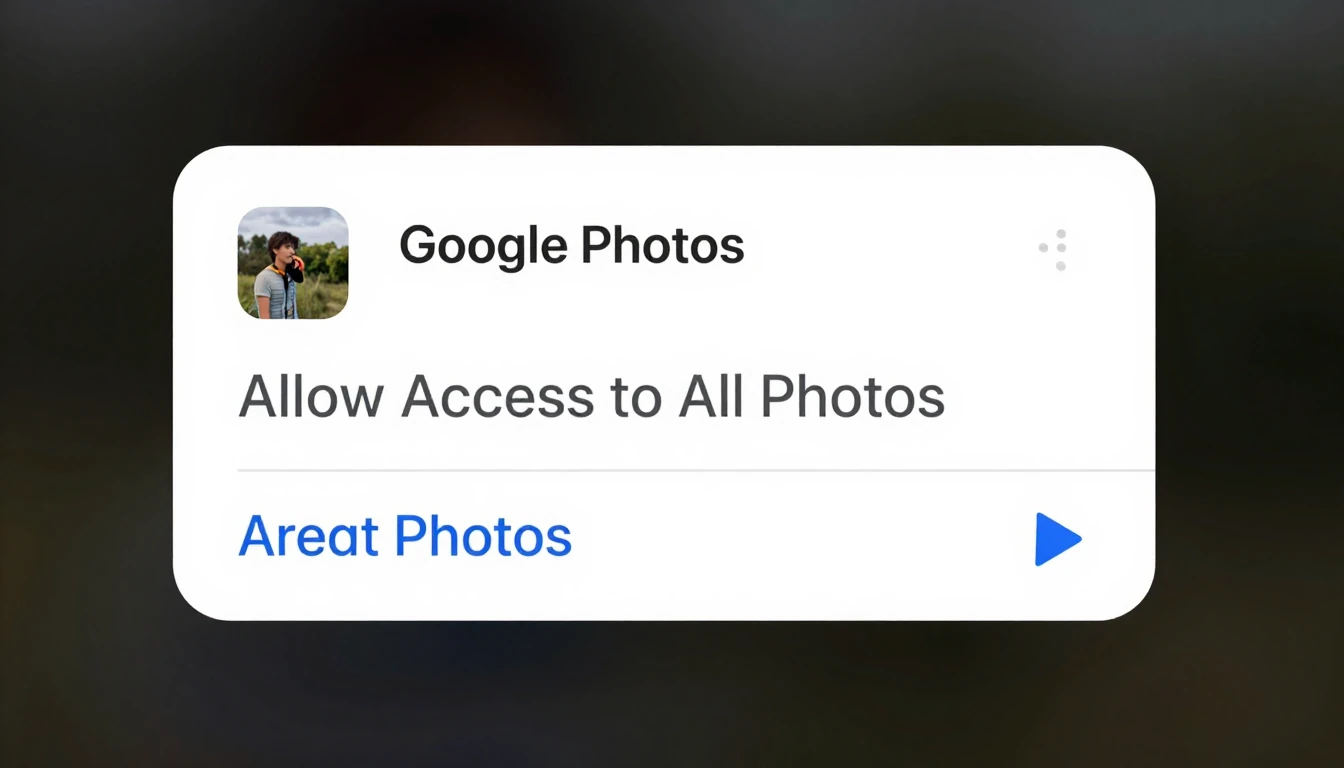
Upon launching the app, it will request permission to access your photos.
For a fully seamless experience, select Allow Access to All Photos. - Enable Background Sync:
To allow photos to upload even when the app is not actively open, navigate to your iPhone's Settings app > locate and tap Google Photos > then ensure Background App Refresh is turned on. - Configure Backup:
Inside the Google Photos app, tap your Profile Picture > Photos settings > Backup and configure backup quality and cellular data usage, similar to the Android instructions.
C. For Desktop (Windows/macOS):
- Install Google Drive for desktop:
This application now seamlessly handles photo backup from your computer.
Download and install it. - Sign In:
Log in with your Google Account credentials. - Add Folders:
During the initial setup, or later within the app's preferences, click Add folder.
Select the specific folders on your computer that contain your photos (e.g., `
` on Windows or `C:\Users\YourName\Pictures
` on macOS)./Users/YourName/Pictures - Select Backup Destination:
Choose the option to Back up to Google Photos.
3. The Automated Backup & Organization Workflow: From Shot to Cloud
Once properly configured, Google Photos establishes a 'set it and forget it' system for your memories, automating much of the organization.
- Capture:
You take a photo or video using your smartphone or another connected device. - Automatic Backup:
With backup enabled, the Google Photos app detects the new file.
Once you connect to Wi-Fi (or if cellular backup is permitted), the app initiates the upload of the file to your Google Account's cloud storage. - AI Indexing & Analysis:
As the file uploads, Google's sophisticated AI immediately begins its work.
It meticulously analyzes the content to identify and categorize:- People & Pets:
Utilizing advanced face grouping technology to recognize individuals and animals. - Places:
Leveraging GPS metadata or landmark recognition to pinpoint locations. - Objects & Themes:
Identifying thousands of distinct objects and themes, such as 'cars', 'food', 'mountains', or 'concerts'. - Text:
Optical Character Recognition (OCR) processes text within photos, making signs, documents, and notes searchable.
- People & Pets:
- Intelligent Organization:
The photo is now seamlessly integrated into your library.
It becomes automatically searchable and discoverable, appearing in your main timeline, under identified people/pets, on the world map, and within search results for related themes. - Automated Creations:
Google's AI proactively generates 'Memories' (curated slideshows), collages, animations, and cinematic photos from your library.
These creative outputs are presented to you without requiring any effort on your part.
4. Mastering AI Editing & Enhancements: Google Photos' Smart Tools Explained
Google Photos has evolved far beyond a simple storage app, transforming into a powerful AI-driven editor.
It's important to note that many of these advanced tools require an active Google One subscription.
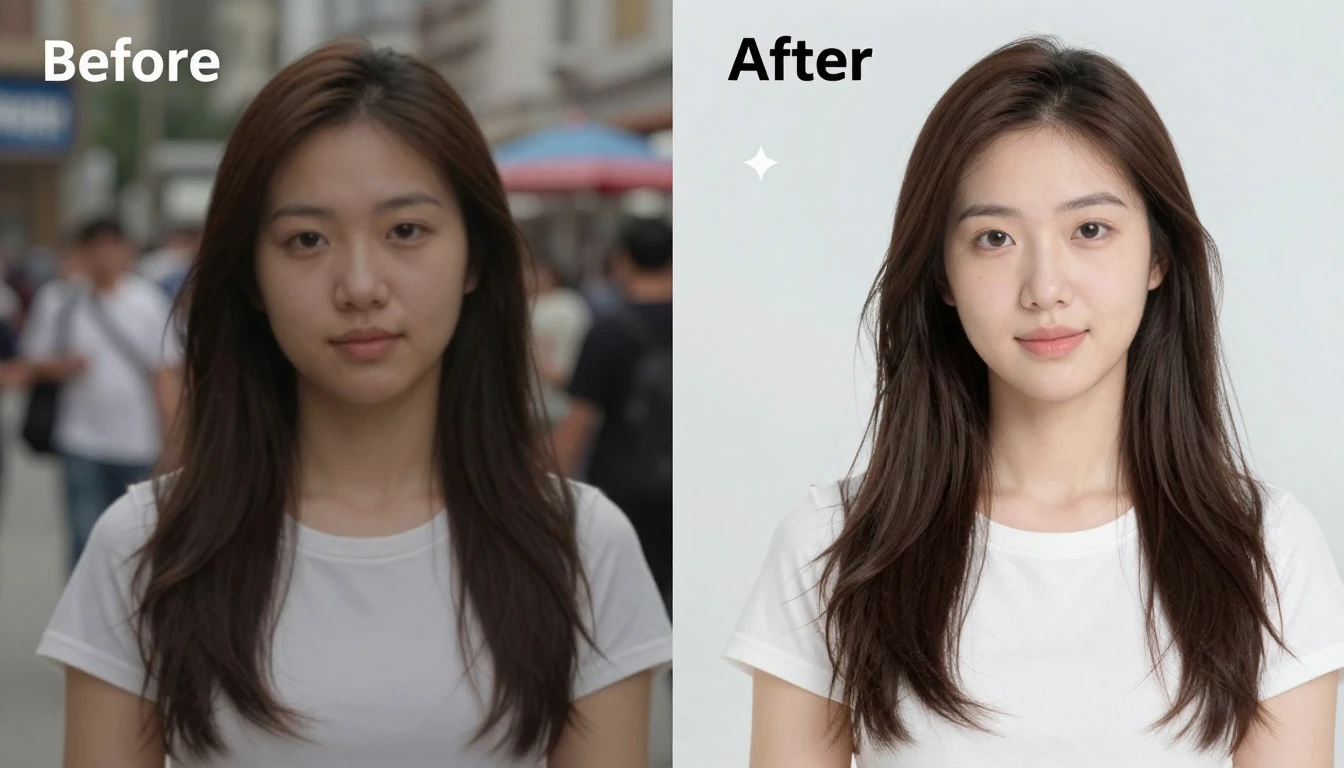
- Magic Editor: This is the flagship generative AI tool.
- What it does:
It allows you to select and reposition subjects, dramatically change the sky, or remove large unwanted objects from your photos.
The AI intelligently regenerates the background to seamlessly fill in any gaps. - How to use:
Open a photo > tap Edit > tap the Magic Editor icon (represented by sparkles) > Circle or brush over an object to select it > Drag to move/resize, or tap to remove > Allow the AI to generate results.
- What it does:
- Magic Eraser: Designed for precise object removal.
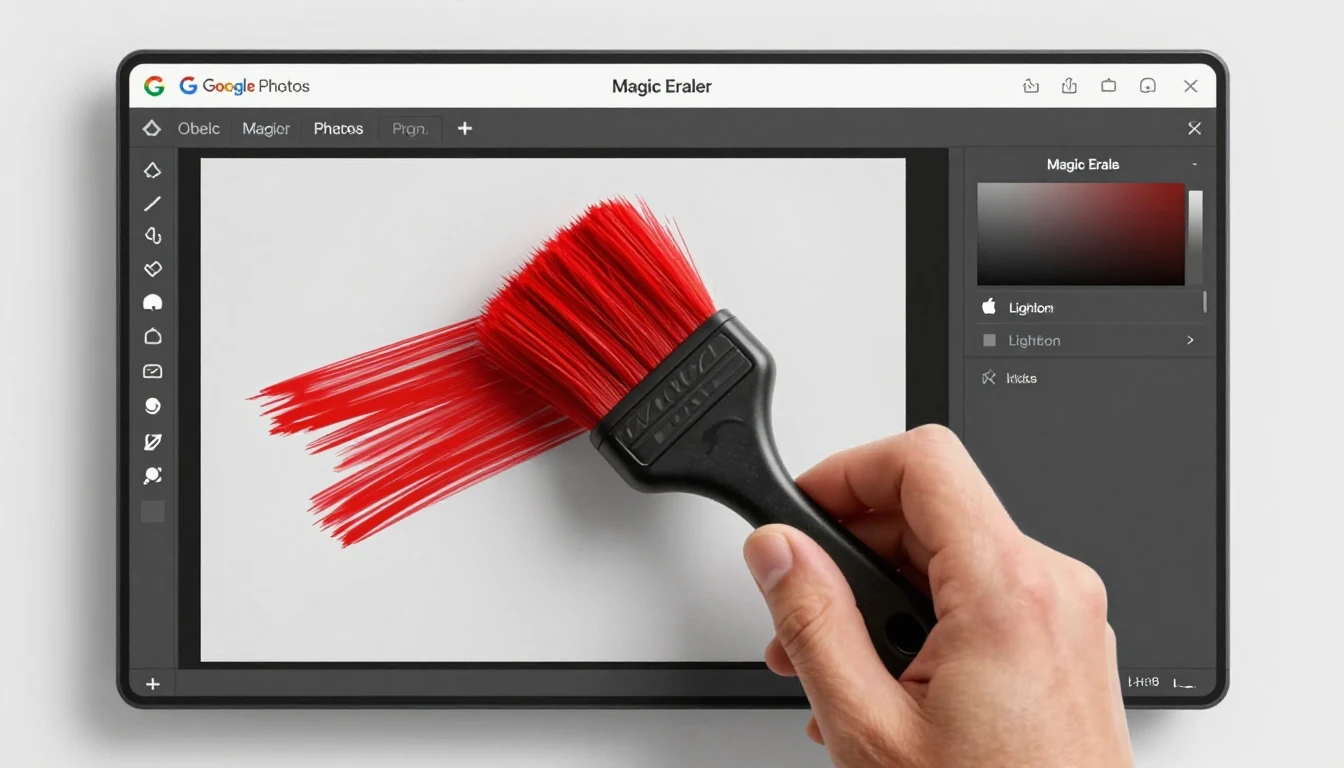
- What it does:
This tool efficiently removes distracting people or objects from the background of your images.
It often provides convenient one-tap suggestions for common distractions. - How to use:
Open a photo > tap Edit > tap Tools > select Magic Eraser > Tap a suggested removal, or use your finger to circle the specific object you wish to erase.
- What it does:
- Photo Unblur: A tool designed to rescue slightly out-of-focus shots.
- What it does:
It employs machine learning to sharpen blurry images, proving particularly effective when used on faces. - How to use: Open a photo > tap Edit > tap Tools > select Unblur.
Adjust the provided slider to control the intensity of the sharpening effect.
- What it does:

- Other Essential AI Tools:
- Portrait Light:
Allows you to add or precisely adjust the lighting on a person's face even after the photo has been taken. - Sky:
Replace a dull or uninspiring sky with options ranging from a vibrant sunset to a clear blue sky, or even dramatic storm clouds. - HDR:
Enhances both brightness and contrast across the entire image, resulting in a more balanced and visually dramatic appearance.
- Portrait Light:
5. Navigating Google Photos Storage: Quotas, Costs, and Optimization (2026)
Understanding your storage usage is absolutely essential for effectively managing costs and preventing interruptions to your backup.
The popular free unlimited 'High Quality' storage tier was discontinued in June 2021.
As of 2026, all photos and videos now contribute to your unified Google Account storage quota.
Storage Quotas & Google One Pricing (Projected for Jan 2026):
Every Google Account is allocated a free 15 GB of storage, which is shared across Google Photos, Gmail, and Google Drive.
To expand your storage capacity beyond this, a Google One subscription is required.
| Plan | Storage | Estimated Monthly Price (USD) | Key Benefits |
|---|---|---|---|
| Free | 15 GB | $0 | Basic access to Google Photos, Gmail, and Drive |
| Basic | 100 GB | $1.99 | Increased storage, access to Google experts, AI editing tools (Magic Editor, etc.) |
| Standard | 200 GB | $2.99 | All Basic benefits, ability to share storage with family members |
| Premium | 2 TB | $9.99 | All Standard benefits, Dark web monitoring, Google Workspace premium features |
| Premium+ | 5 TB | $24.99 | Designed for power users and professional content creators, includes all Premium benefits |
For the latest official pricing details, please refer to the Google One Pricing page.
Strategies for Storage Optimization:
- Use the Management Tool:
This is the most critical step for freeing up space.
Go to photos.google.com/settings/storage and click 'Manage storage'.
This invaluable tool identifies and helps you efficiently delete blurry photos, large videos, and screenshots that are consuming space. - Switch to Storage Saver:
If professional-grade original quality is not a necessity for your everyday photos, you can conserve significant space.
Navigate to Photos settings > Backup > Backup quality and select Storage saver.
This setting will compress all future uploads to reduce their file size. - Empty Your Trash:
It's a common oversight, but items in the trash for Google Photos, Drive, and Gmail still count towards your overall quota for 30 to 60 days.
Manually emptying these trash folders can immediately free up valuable storage space.
6. Troubleshooting Common Google Photos Sync & Backup Errors
Even the most robust systems can occasionally encounter hiccups.
Here’s how to diagnose and resolve some of the most common Google Photos sync and backup issues.
- Issue: Backup is Stuck or Says 'Getting ready to back up'.
- Cause:
This can be due to a poor Wi-Fi connection, critically low battery, operating system restrictions on background activity, or a full Google Account storage quota. - Solution:
- Verify you are connected to a strong and stable Wi-Fi signal.
- Plug your device into a charger to ensure sufficient power.
- Check your current storage usage at one.google.com/storage.
If your storage is full, you must either free up space or upgrade your Google One plan. - On Android: Clear the Google Photos app cache.
Go to Settings > Apps > Photos > Storage & cache > Clear cache. - On iOS: iOS devices can sometimes deprioritize background uploads.
Open the Google Photos app and leave it actively on the screen for a few minutes to allow the backup process to restart and complete.
- Cause:
- Issue: Duplicate Photos Appearing.
- Cause:
This often occurs when photos that were already backed up are manually uploaded again, or due to sync glitches from multiple sources attempting to back up the same folder (e.g., a laptop and a phone). - Solution:
Google Photos is generally highly effective at detecting and preventing duplicate uploads.
If you do observe what appear to be duplicates, they are likely near-duplicates (e.g., one original and one slightly edited version).
Utilize the 'Manage storage' tool (mentioned in Section 5) to specifically look for blurry or very similar shots that you can safely delete.
- Cause:
- Issue: Photos Missing from the Library.
- Cause:
A photo might be missing because it was never successfully backed up, it was intentionally deleted, or it has been moved to the Archive. - Solution:
- On the device where the photo was originally taken, open Google Photos and inspect the backup status on the image thumbnail.
A cloud-with-a-slash icon clearly indicates that the photo has not yet been backed up. - Thoroughly check both the Trash and Archive folders, which are accessible from the Library tab within the app.
- On the device where the photo was originally taken, open Google Photos and inspect the backup status on the image thumbnail.
- Cause:
7. Seamless Sharing & Collaboration with Google Photos
Sharing your cherished memories is a fundamental feature of Google Photos.
Here’s how to do it both effectively and securely.
- Best Practice: Direct Share vs. Link Share
- Direct Share (More Secure):
When you share an album or a photo directly with another person's Google Account, only that specific individual can view the content when they are logged in.
This method grants you full control, allowing you to easily revoke access at any time. - Link Share (More Convenient):
Creating a shareable link enables anyone with that link to view the photos.
While this is incredibly convenient for sharing with large groups, it is inherently less secure.
Always exercise caution regarding where you post or distribute these shareable links.
- Direct Share (More Secure):
- How to Create a Collaborative Album:
- Go to the Sharing tab and tap Create shared album.
- Provide a descriptive title for the album and then select the photos you wish to add.
- Tap Share and invite specific people using their Google Account, or generate a shareable link.
- Within the album's Options (accessible via the three-dot menu), ensure that Collaborate is turned on.
This setting permits others to add their own photos and videos to the album, making it an ideal solution for group vacations, family events, or ongoing projects.
- Partner Sharing: The Ultimate Automation
- What it is:
This feature allows you to automatically share photos with one designated, trusted partner (e.g., your spouse).
You have granular control, with options to share your entire library, all photos taken from a specific date forward, or only photos that contain specific people. - How to Set Up:
Navigate to Photos settings > Sharing > Partner Sharing > Get started.
Follow the guided prompts to invite your partner and meticulously configure your sharing preferences.
- What it is:
8. Integrating Google Photos into Your Smart Home Ecosystem
Bring your most cherished digital memories into your physical living space by seamlessly integrating Google Photos with your smart home devices.
- Google Nest Hub & Smart Displays:
- Turn your Google Nest Hub or any compatible smart display into a sophisticated digital photo frame.
- Setup Path:
Open the Google Home app > Tap on your specific Nest Hub device > Tap Settings (gear icon) > Select Photo Frame > Choose Google Photos. - Configuration:
You can select specific albums, recent highlights, or create Live Albums of family and friends to display.
The device will automatically cycle through these treasured memories when it is idle.
- Turn your Google Nest Hub or any compatible smart display into a sophisticated digital photo frame.
- Chromecast & Google TV:
- Transform your television into a magnificent canvas for showcasing your photos.
- Setup Path:
Open the Google Home app > Tap on your Chromecast device > Tap Settings (gear icon) > Select Ambient Mode > Choose Google Photos. - Usage:
Select desired albums to display as a screensaver.
Additionally, you can directly 'cast' photos from the Google Photos app on your smartphone to your TV for an instant, shared viewing experience.
- Transform your television into a magnificent canvas for showcasing your photos.
- Third-Party Digital Frames:
- Many contemporary digital photo frames from brands like Aura and Nixplay now offer direct integration with Google Photos.
- During the frame's initial setup process, typically within its dedicated companion app, you will usually find an option to link your Google Photos account.
This allows you to sync selected albums directly to the frame for a dynamic display.
Always verify product compatibility before making a purchase.
For more detailed support and advanced tips, always refer to the Google Photos Help Center.