NotebookLM v3.5, powered by Google's Gemini 2.5 Pro, significantly enhances multi-source synthesis and reasoning.
It integrates with your Google Account and supports diverse sources like PDFs, Docs, and web pages.
Mastering NotebookLM involves creating notebooks, generating summaries, asking precise questions, and iterating on AI responses.
The tool truly shines in synthesizing insights across multiple documents through explicit source referencing.
While powerful, understanding common issues and prompt engineering best practices is crucial for optimal results.
Future developments aim for deeper Google Workspace and third-party integrations, alongside an enterprise offering.
Exploring NotebookLM v3.5: Your AI Research Assistant with Gemini 2.5
Research and information synthesis can be demanding.
Sorting through documents, articles, and web pages to connect ideas and extract insights takes time.
This is where NotebookLM steps in as a dedicated AI research assistant.
With its v3.5 release, powered by Google's next-generation Gemini 2.5 Pro model, NotebookLM offers notable improvements in how it understands and synthesizes information from your various sources.
Let's look at how to get started and make the most of this tool.

NotebookLM: First Steps & Account Setup
Getting NotebookLM up and running is straightforward.
Your personal AI research assistant is linked directly to your Google Account.
System Requirements
NotebookLM is a web-based application.
You will need a modern web browser, such as the latest two versions of Chrome, Firefox, Safari, or Edge.
A stable internet connection is also required, along with a valid Google Account.
Accessing Your Account
There is no separate sign-up process for NotebookLM.
It uses your existing Google Account.
- Navigate to notebooklm.google.com.
- If you are not already signed in, you will see a prompt to 'Sign in with Google'.
- Choose the Google Account you wish to use.
- Grant the necessary permissions for NotebookLM to access Google Drive for managing your sources.
Initial Interface Walkthrough
Upon your first login, you will see a clean, two-panel interface.
The Left Panel, known as the Sources Pane, is where your knowledge base resides.
It lists your notebooks.
When a notebook is open, this pane displays all the documents, websites, and other sources you have added to it.
Each source is clearly labeled.
The Right Panel is your interactive Workspace.
At the bottom, you will find the Chat/Prompt Bar where you ask questions and interact with the AI.
The main area of the workspace displays the AI-generated responses, summaries, and your prompts, forming a conversation history.
At the top of the workspace, you will find Notebook Tools with options to create new notes, save specific AI responses, and manage your notebook's content.
Importing Your Knowledge: Connecting Diverse Sources
NotebookLM's strength comes from grounding its AI in your information.
Version 3.5 supports a wide range of source types.
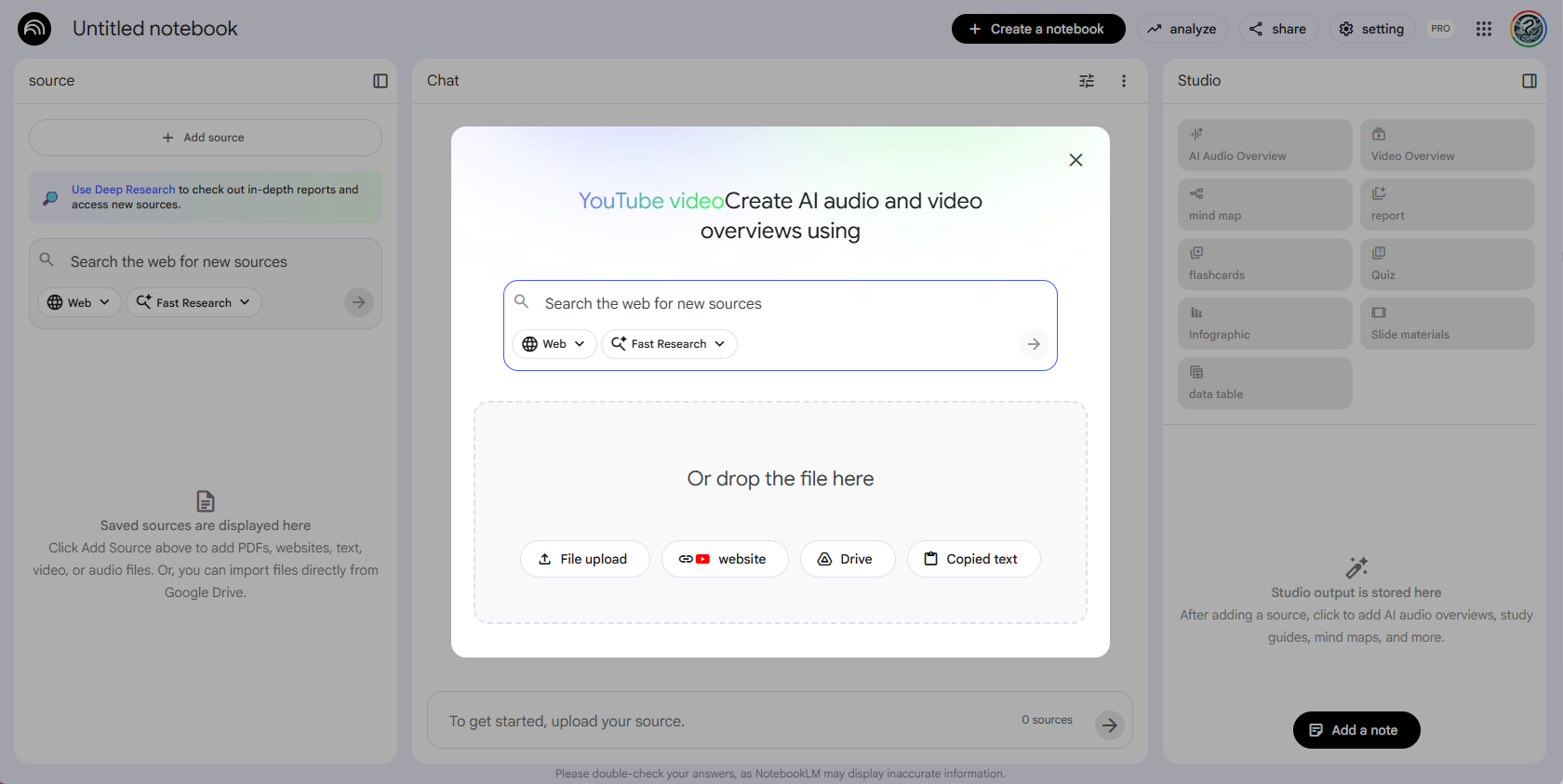
Uploading Files from Your Computer
You can directly upload files from your local storage.
- Inside an open notebook, locate the '+ Add Sources' button in the top-left corner of the Sources Pane.
- Select 'Upload files'.
- A system dialog will open, allowing you to select multiple files at once.
Supported file types include PDF (.pdf), Text files (.txt, .md), and Microsoft Word (.docx).
Support for .docx files is a new addition in v3.x releases.
Connecting from Google Drive
For existing Google Workspace users, this is a very efficient method.
- Click '+ Add Sources'.
- Select 'From Google Drive'.
- A standard Google Drive picker window will appear.
Navigate to your files and select them.
Supported Google Drive types include Google Docs, Google Slides, and PDFs or other text-based files stored in Drive.
Linking Web Content
NotebookLM can also ingest and analyze the content of public web pages.
- Click '+ Add Sources'.
- Select 'Website URL'.<
- Paste the full URL into the text box and click 'Add'.
NotebookLM will process the page's main textual content, often stripping away ads and navigation bars for cleaner analysis.
Once added, each source appears as a clickable item in the Sources Pane, allowing you to easily reference it in your prompts.
Mastering the Notebook: Summaries, Q&A, and Iteration
This section covers the core interaction loop where you transform raw information into structured knowledge.
Creating a New Notebook
Organizing your research into separate notebooks for each project or topic keeps sources and insights manageable.
- From the NotebookLM home screen, click the '+ New Notebook' button.
- Give your notebook a descriptive title, such as 'Q4 Marketing Strategy Research'.
Generating Quick Summaries
After adding a source, you can get an immediate overview.
- In the Sources Pane, click on the source you just added, for example, `research_paper.pdf`.
- A preview and source-specific options will appear.
- Click the 'Generate Summary' button.
The AI will produce a concise summary in the Workspace, complete with citations pointing back to the source document.
Asking Precise Questions
Use the chat bar to query your sources.
Being specific is key to getting relevant answers.
"What are the key financial risks mentioned in the annual_report_2025.pdf?"

"According to the 'market_trends' web source, who are the top three competitors in the AI hardware space?"

"List all the action items assigned to the 'Marketing Team' in the meeting_notes.gdoc."
Refining and Iterating on AI Responses
An AI response is often a starting point, not a final answer.
Use follow-up prompts to refine the output.
Initial Prompt: "Summarize the project proposal."
AI Response: (Provides a general summary).
Refinement Prompt 1: "Expand on the 'budget' section of that summary. List the costs in a table format."
Refinement Prompt 2: "Now, rewrite the key takeaways from that summary as a 3-bullet point list for an executive audience."
Synthesizing Insights Across Diverse Sources
NotebookLM v3.5 truly shines in its ability to synthesize information across multiple documents.
By default, your prompts query all sources within the current notebook.
Advanced Strategy: Explicit Source Referencing
To generate novel insights, you can guide the AI on how to connect specific documents.
You can reference sources by their filename or by the number assigned to them in the Sources Pane.
Practical Example 1: Competitive Analysis
Imagine you have these sources added to your notebook:
- `internal_product_roadmap.pdf`
- `competitor_X_earnings_call_transcript.txt`
- `tech_trends_2026_article.url`
You could use a synthesis prompt like this:
"Based on our product roadmap [1] and the strategic priorities mentioned in Competitor X's earnings call [2],
identify three potential market threats. For each threat, suggest a counter-strategy inspired by the
technological shifts described in the tech trends article [3]."
Practical Example 2: Research Paper Creation
Consider these sources for a research project:
- `study_A_results.pdf`
- `study_B_methodology.pdf`
- `literature_review.gdoc`
A synthesis prompt could be:
"Compare and contrast the methodology from Study B with the one described in our literature review.
How might the differences in methodology explain the conflicting results between Study A and Study B?
Draft a paragraph outlining this discrepancy."
Common Hurdles & Optimizing NotebookLM Outputs
Even with the advanced Gemini 2.5 Pro model, the quality of your prompt directly affects the quality of the output.
Here's how to troubleshoot and optimize your interactions.
Troubleshooting Common Issues
Irrelevant or Hallucinated Responses
Sometimes, the model might respond using its general knowledge rather than strictly from your sources, or your prompt might be too vague.
To fix this, begin your prompt with "Using only the provided sources,..." to ensure it sticks to the context of your documents.
Also, ensure your question is directly answerable from the text within your documents.
Source Loading Errors
A file might fail to load if it is corrupted, too large (current limit is 500 pages or 200k words per source), or contains heavy, non-textual elements like complex diagrams or encrypted content.
Try re-saving PDFs as text-optimized versions.
For Google Docs or Slides, ensure sharing permissions are correctly set for your account.
Poor Summaries
If a document lacks clear structure, such as distinct headings or sections, the AI might struggle to provide a coherent summary.
In these cases, try asking for a summary of a specific section or page range, for example, "Summarize pages 5-8 of research_paper.pdf."
Best Practices for Crafting Effective Prompts
- Be Specific and Provide Context: Instead of asking "What about marketing?", try "What was the Q4 marketing ROI according to the financial_report.pdf?"
- Ask for a Specific Format: Guide the AI on how to present its output.
Use commands like "List as bullet points," "Create a markdown table," "Draft an email," or "Explain it like I'm a beginner."
- Use Personas: Assigning a role can shape the AI's perspective.
For example, "Act as a financial analyst and critique the investment strategy in source [1]."
- Chain Your Prompts: Avoid asking for everything in one go.
Build complexity through iterative questioning, as shown in the 'Mastering the Notebook' section.
NotebookLM's Evolving Ecosystem & Integrations (2026 Perspective)
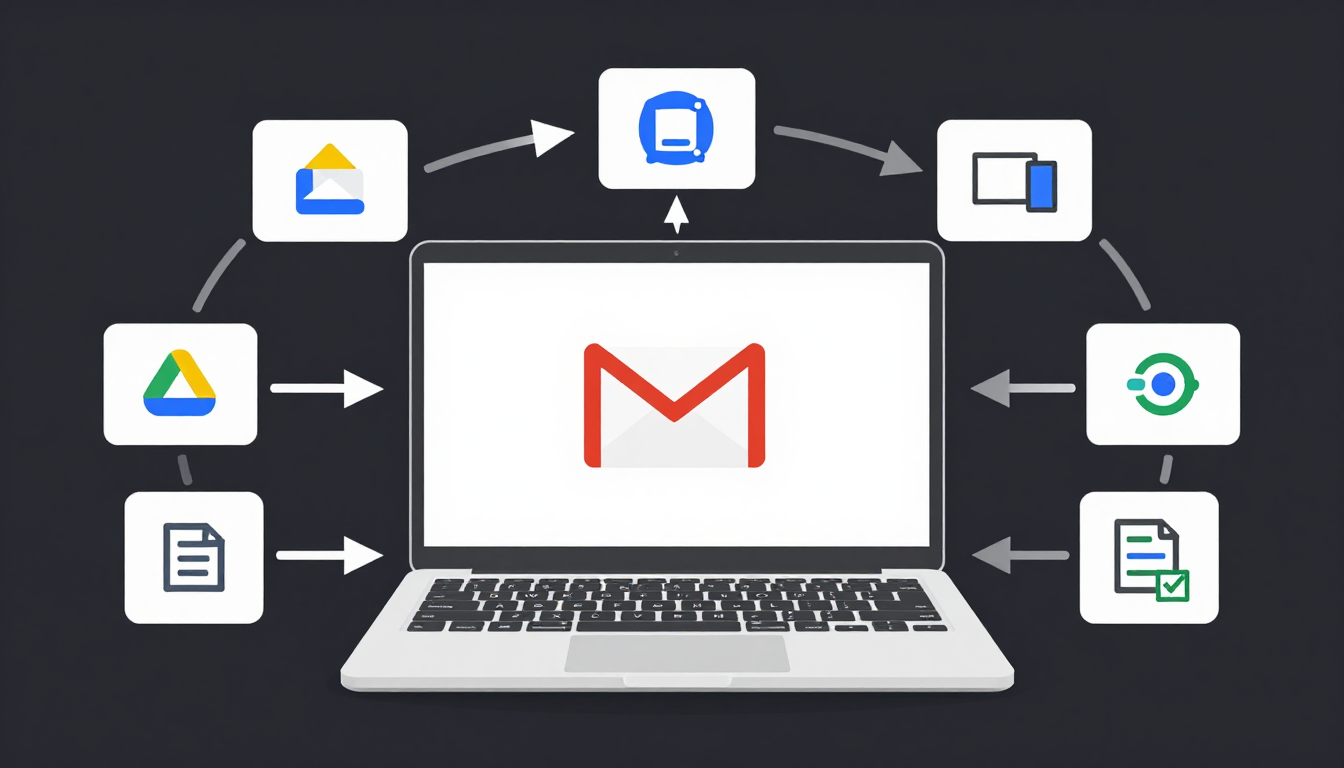
NotebookLM is becoming an increasingly integrated hub within the Google Workspace ecosystem, moving beyond a standalone tool.
Current Limitations (as of Jan 2026)
While powerful, NotebookLM currently has some limitations.
It has limited multimodality; it can extract text from images within documents but cannot deeply analyze video, audio, or complex unlabeled diagrams.
Real-time collaboration is also not yet available, as notebooks remain single-user environments.
This feature is highly requested but not yet implemented.
Finally, an active internet connection is consistently required, as there is no offline mode.
Future Features & Integrations (Speculative Roadmap H2 2026 - 2027)
The future of NotebookLM points towards deeper integration and expanded capabilities.
Deep Google Workspace Integration
A "Send to NotebookLM" button for Gmail is in active development, which will allow users to add entire email threads as sources for analysis.
Connecting Google Sheets as a dynamic source is also anticipated, enabling prompts like "What is the average of column F in my sales_data.gsheet source?"
An "Export to Slides" feature is also expected, which would take structured notes or summaries from NotebookLM and generate draft presentations, with each key point on a separate slide.
Third-Party API & Plugin Ecosystem
Google is expected to announce a limited beta for a plugin architecture.
This would allow integrations with specialized data sources such as academic search engines (e.g., arXiv, PubMed) or computational tools like WolframAlpha.
Such integrations would enable the model to perform complex calculations based on data found in your sources.
NotebookLM for Enterprise
A premium tier for businesses is anticipated.
This offering would feature enhanced security, admin controls, team-based knowledge sharing, and the ability to connect to internal company knowledge bases like Confluence or SharePoint as sources.
NotebookLM v3.5 offers a robust platform for anyone looking to streamline their research and knowledge synthesis.
By understanding its capabilities, limitations, and best practices, you can significantly enhance your workflow.
The ongoing development promises even more powerful integrations, making it an increasingly central tool for managing information.


