🚀 Key Takeaways
- Achieving a dust-free PC build heavily relies on understanding and optimizing your case's internal airflow pressure.
- Positive pressure actively works to keep dust out by making it difficult for particles to enter, whereas negative pressure can draw dusty air into your case from all unsealed points, leading to dust being sucked in.
- For most users aiming for a cleaner system, positive pressure is generally preferred due to its effectiveness in preventing dust ingress.
Maintaining a clean PC is crucial for its longevity and performance, and the secret often lies in understanding its internal airflow.
This feature tutorial will guide you through the intricacies of PC airflow, explaining the differences between positive and negative pressure setups to help you achieve a truly dust-free build.
The choice between positive and negative pressure significantly impacts how effectively your PC case prevents dust accumulation.
While negative pressure can inadvertently pull dusty air into your case through every tiny opening, positive pressure actively creates an environment where it's hard for dust to come in.
By grasping these core concepts, you can optimize your system to not only run cooler but also stay pristine for longer.

1. At a Glance: Key Details
| Feature | Positive Pressure | Negative Pressure |
|---|---|---|
| Dust Prevention | Excellent: Air actively pushed out, dust filters highly effective on intake. | Poor: Air passively drawn in through all unfiltered openings, increasing dust ingress. |
| Thermal Management | Consistent, directed airflow, stable component temperatures. | Rapid evacuation of hot air, can create localized hotspots if not managed. |
| Fan Configuration | Total intake CFM > Total exhaust CFM. | Total exhaust CFM > Total intake CFM. |
| Ideal Use Case | General cleanliness, long-term component health, stable performance. | Aggressive heat shedding for specific high-power components, often in controlled environments. |
2. PC Airflow 101: Defining Positive vs. Negative Pressure
🔹 The Balance of Air: Unpacking Case Pressure Dynamics
Understanding PC airflow begins with recognizing the fundamental concept of case pressure: the balance between air entering and leaving your system.
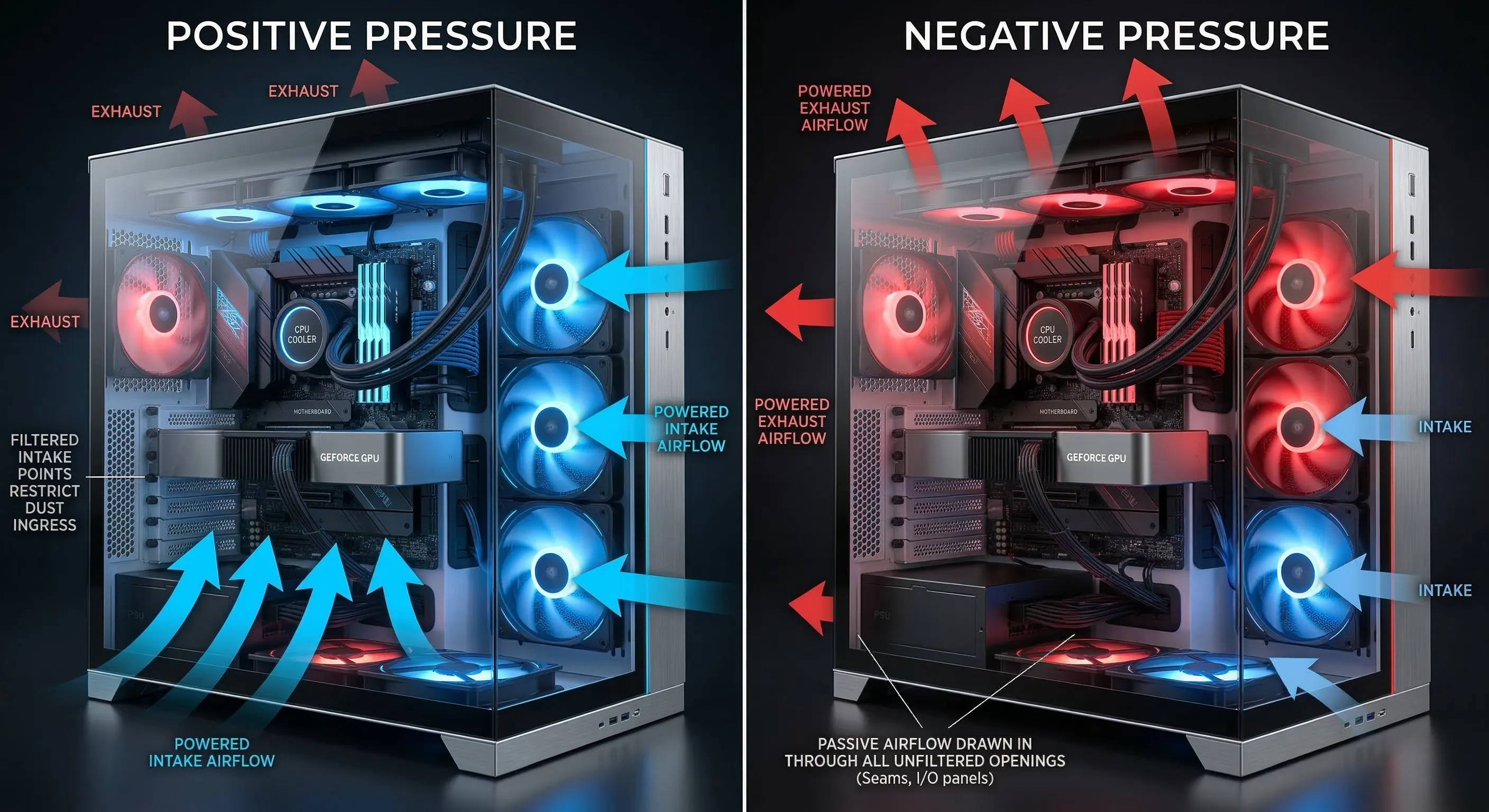
When your PC case has positive pressure, it means the total volume of air pushed into the case by intake fans is greater than the total volume of air pulled out by exhaust fans.
This creates an internal air pressure that is slightly higher than the surrounding room environment.
Conversely, negative pressure occurs when your PC's exhaust fans collectively move more air out of the case than your intake fans bring in.
In a negative pressure setup, the internal pressure drops below the external ambient pressure.
This configuration describes where the powered airflow is primarily directed: outward, with ambient air passively entering through various openings in the case.
🔹 Strategic Airflow: Optimizing Thermal Management
The choice between positive and negative pressure significantly impacts how heat is managed within your system.
With a positive pressure configuration, a consistent flow of fresh air is pushed through the system, creating a directed path for heated air to exit through designated exhaust vents.
This can lead to more stable and consistent temperatures across all components, making it ideal for scenarios like a graphic designer running extended renders where CPU and GPU stability over long periods is crucial.
Conversely, a negative pressure setup excels at rapidly evacuating hot air from within the case.
This approach can be highly effective for quickly removing concentrated heat, especially if exhaust fans are strategically positioned near high-temperature components like a powerful graphics card.
Consider a competitive gamer needing to aggressively shed heat from their GPU during short, intense gaming sessions to prevent throttling.
🔹 Mastering the Airflow Equation
Effectively managing your PC's internal pressure is a direct result of carefully balancing your intake and exhaust fan setup.
Achieving either positive or negative pressure is entirely within your control through the selection and configuration of your case fans.
The total Cubic Feet per Minute (CFM) rating of your intake fans versus your exhaust fans determines the prevailing pressure inside your system.
Experimenting with fan placement, fan types, and fan speeds allows you to tailor the airflow to the specific needs of your hardware and the thermal demands of your usage.
Monitoring your component temperatures during various workloads is the ultimate way to verify the effectiveness of your chosen pressure configuration.
3. The Dust Problem: Why Negative Pressure is a Dust Magnet
🔹 The Unwanted Influx: How Negative Pressure Invites Dust
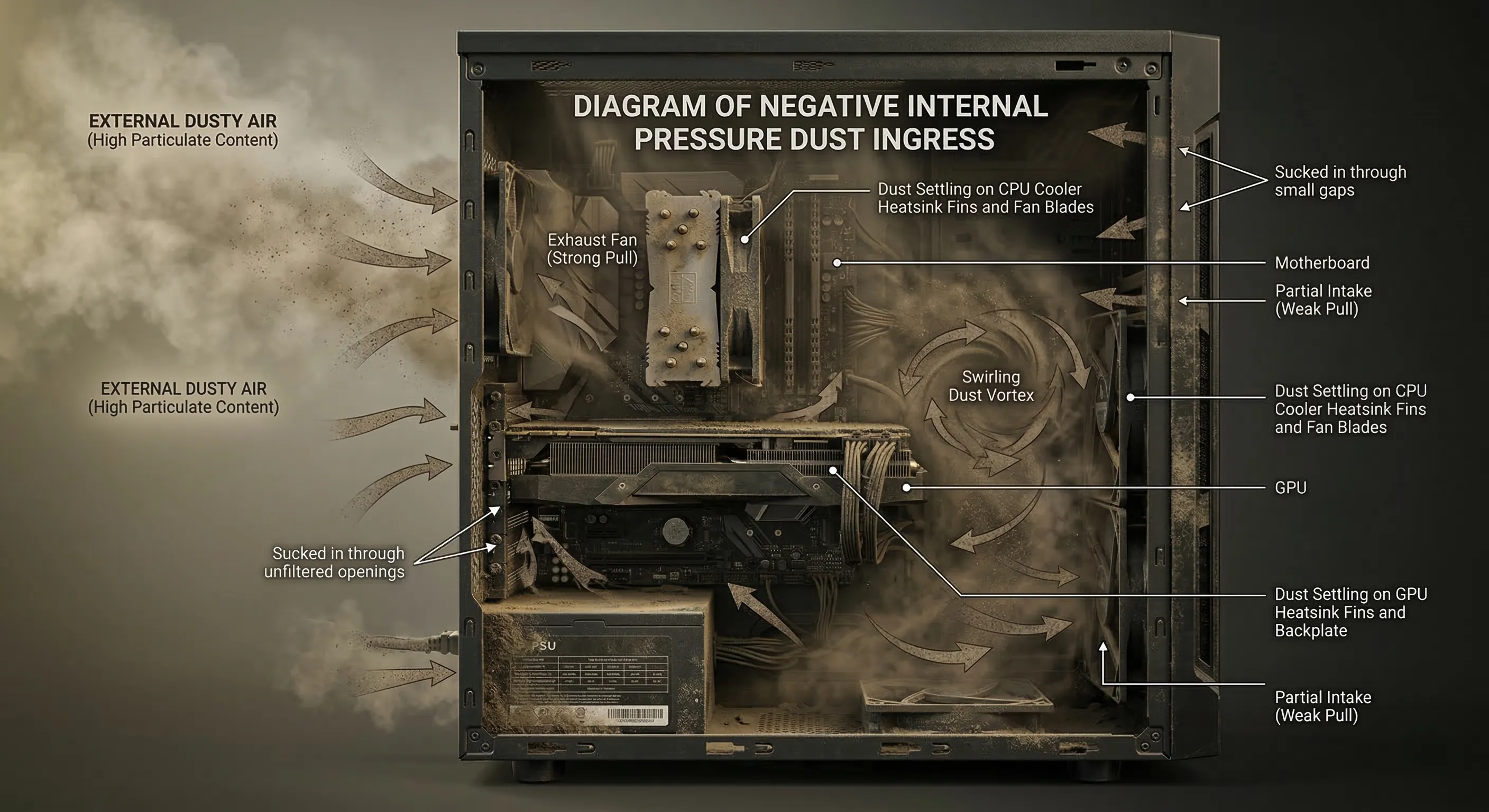
A negative pressure setup inherently creates a vacuum effect within the PC case.
This condition means it will draw in dusty air through every point in the case that isn't air, effectively turning every tiny gap and crevice into an unfiltered intake.
Consequently, dust can be sucked in to your case from areas typically not equipped with dust filters.
Ultimately, negative pressure can lead to dusty air ingress, compromising the internal cleanliness of your system.
🔹 Real-World Repercussions: The Silent Scourge of Unfiltered Air
Consider a student using their PC for late-night study sessions in a dorm room; the accumulated dust from a negative pressure setup could quickly clog heatsinks, leading to distracting fan noise and potential thermal throttling during critical assignments.
Imagine a professional video editor rendering a large project; prolonged exposure to dust-laden air, drawn in by negative pressure, might cause components to overheat, leading to crashes and lost work, especially in a home office environment where dust is inevitable.
For a casual gamer, the constant dust ingress facilitated by negative pressure can mean a frequent need for thorough cleaning, disrupting their leisure time and potentially shortening the lifespan of expensive graphics cards and CPUs due to increased operating temperatures.
The continuous battle against dust accumulation means more frequent maintenance, reduced aesthetic appeal of internal components, and potentially higher component wear over time, directly impacting the user's experience and the longevity of their hardware.
🔹 Mitigating the Mess: Expert Insights on Negative Pressure Dust
Experts consistently highlight that the primary risk associated with a negative pressure configuration is its vulnerability to dust.
The fundamental mechanism where dust can be sucked in to your case from any unfiltered opening makes it a less-than-ideal setup for users concerned about system longevity and cleanliness.
Therefore, understanding that negative pressure can lead to dusty air ingress is crucial for any PC builder.
Pro-tips often revolve around compensating for this inherent flaw, such as employing higher quality and more frequent dust filter cleaning schedules, or re-evaluating fan configurations to reduce the negative pressure bias.
The consensus points towards proactively addressing dust management if a negative pressure setup is unavoidable, acknowledging the inevitable challenges it presents.
4. The Pro's Choice: Achieving a Dust-Resistant PC with Positive Pressure
🔹 The Sealed Sanctuary Principle
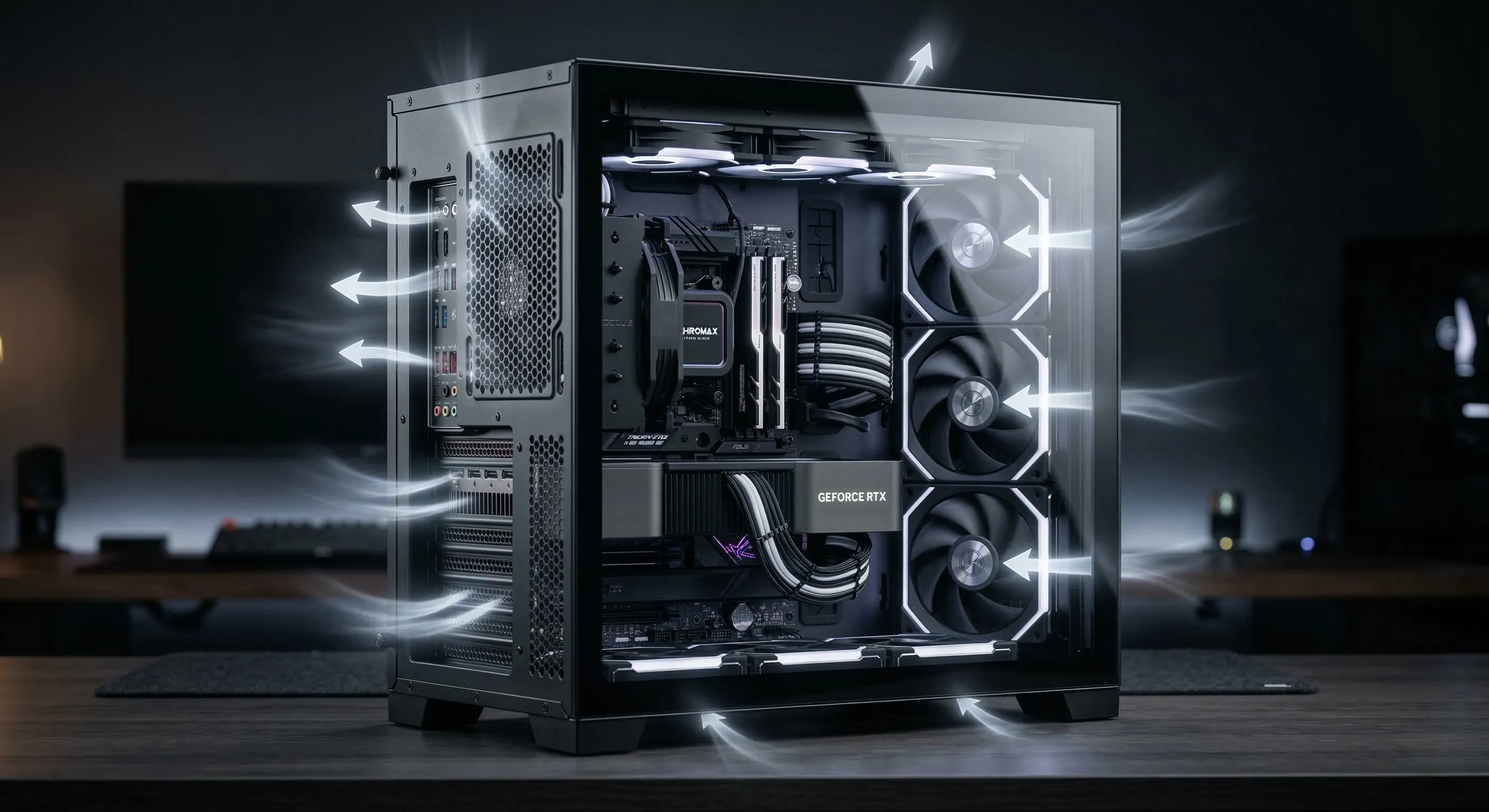
The core characteristic of a properly configured positive pressure system is that it will make it hard for dust to come in to your case.
This happens because the internal air pressure gently forces air out of every tiny, unfiltered opening or seam.
🔹 Keeping Your Digital Workspace Pristine
For professionals like video editors, graphic designers, or 3D artists, whose workstations are crucial for their livelihood, maintaining a clean interior is paramount.
Imagine a scenario where a creative is rendering a complex scene; a dust-clogged cooler could lead to overheating and system instability, jeopardizing deadlines.
With positive pressure, the constant outward airflow acts as a proactive shield, preventing dust from settling on sensitive components like GPU fins or CPU heatsinks.
This ensures consistent performance and longevity, allowing a student to focus on their thesis without hardware worries, or a developer to compile code without unexpected thermal throttles.
It extends the life of components, providing peace of mind and reducing the need for frequent, intrusive cleanings.
🔹 The Community Consensus on Cleanliness
Across enthusiast forums and professional builder circles, there's a strong consensus: generally, positive pressure is preferred for maintaining optimal internal cleanliness.
This preference stems from its inherent ability to create a protective barrier against particulate ingress.
Experts often highlight that while no system is entirely dust-proof, a well-implemented positive pressure setup significantly reduces the frequency and severity of dust accumulation.
5. 💡 Tech Talk: Glossary
- Negative Pressure: Imagine your PC is like a vacuum cleaner, sucking air *into* itself from every tiny crack, which means dust gets pulled in too.
- Positive Pressure: Think of your PC as a slightly inflated balloon; air is always gently pushing *out*, making it hard for any dust to sneak inside.
📚 Related Posts
ASUS Zenbook S 16 vs. Surface Laptop 7: The Ultimate 2026 AI PC Buying Guide
🚀 Key TakeawaysThe ASUS Zenbook S 16 (UM5606) leads the charge for local AI tasks, featuring the AMD Ryzen™ AI 9 HX470 Processor.Microsoft's Surface Laptop (7th Edition) - 15" offers a compelling Snapdragon® X Elite processor with a 45 TOPS Qualcomm
tech.dragon-story.com
Samsung T9 vs T7 Shield vs Crucial X10 Pro: The Ultimate SSD for Gamers and Creators
🚀 Key TakeawaysThe Samsung T9 and Crucial X10 Pro deliver peak performance with their USB 3.2 Gen 2x2 (20Gbps) interface, effectively doubling the transfer speed of the Samsung T7 Shield's USB 3.2 Gen.2 (10Gbps).Both the Samsung T9 and Crucial X10 Pro s
tech.dragon-story.com
Ultimate 100W GaN Charger Battle: Anker vs UGREEN vs INIU for MacBook Users
🚀 Key TakeawaysAll three brands (Anker, UGREEN, INIU) deliver powerful 100W GaN charging with a versatile 3-port configuration (2 USB-C, 1 USB-A), making them highly suitable for MacBook users and multiple devices.Distinct features differentiate them: A
tech.dragon-story.com


