Key Takeaways:
- Run Llama 3.1 (8B & 70B) locally on an NVIDIA RTX 5060 Ti (16GB VRAM) for privacy, cost savings, and control.
- The 16GB VRAM is ideal for the 8B model and can handle the 70B model with aggressive quantization and GPU offloading to system RAM.
- Use GGUF-quantized models for optimal performance on consumer hardware.
- Ollama and LM Studio offer straightforward ways to download, configure, and interact with Llama 3.1 models.
- Manage VRAM by adjusting GPU layers, quantization levels, and context size, especially for the 70B model.
Running large language models like Llama 3.1 (8B and 70B) locally on an NVIDIA RTX 5060 Ti transforms your desktop into a powerful, private AI workstation.
This guide explains how to get Meta's latest models operational, offering benefits like data privacy and eliminating API costs.
1. Why Run Llama 3.1 on an RTX 5060 Ti Locally?
Deploying large language models (LLMs) on your local machine offers clear advantages over cloud-based APIs.
The combination of Llama 3.1 and an RTX 5060 Ti strikes a good balance for many users.
Benefits of Local Deployment:
- Privacy & Security:
Your data stays on your machine.
This is important for sensitive personal, financial, or proprietary information. - Cost-Effectiveness:
After the initial hardware purchase, inference is free.
You avoid per-token costs, rate limits, or monthly subscriptions. - Control & Customization:
You have full control over the model, data, and application.
You can fine-tune models, experiment with parameters, and build offline-first applications. - Low Latency:
Inference happens at your hardware's speed.
This eliminates network latency for near-instantaneous responses.
Suitability of the RTX 5060 Ti:
The NVIDIA RTX 5060 Ti, with its 16GB of GDDR7 VRAM, is a capable consumer GPU for local AI.
- For Llama 3.1 8B:
The 16GB VRAM is sufficient to run the 8B parameter model at high precision (e.g., 4-bit or 5-bit quantization) with a large context window.
This results in very fast inference speeds. - For Llama 3.1 70B:
Running the 70B model is challenging but possible.
It requires aggressive quantization (e.g., 2-bit or 3-bit) and GPU offloading.
Some model layers are processed by the GPU, and the rest are handled by system RAM.
Performance will be slower, but it makes the model accessible for non-commercial or experimental use cases.
2. Hardware & Software Prerequisites Checklist
Ensure your system meets these requirements before starting.
Hardware:
- GPU:
NVIDIA GeForce RTX 5060 Ti (16GB VRAM recommended). - System RAM:
32GB DDR5 is recommended.
64GB is ideal if you plan to run the 70B model frequently, as it will be used for offloading layers. - CPU:
A modern 8-core CPU (e.g., Intel Core i7-14700K or AMD Ryzen 7 8700X) helps with data loading and any non-offloaded model layers. - Storage:
A fast NVMe SSD with at least 100GB of free space.
Models are large; the 70B GGUF file alone can be over 40GB.
Software:
- OS:
Windows 11 / Windows Subsystem for Linux 2 (WSL2) or a native Linux distribution (e.g., Ubuntu 24.04 LTS). - NVIDIA Drivers:
Version 615.xx or newer.
You can download them from the Official NVIDIA Drivers page. - CUDA Toolkit:
Version 13.0 or newer is recommended for full compatibility with the latest frameworks.
Download it from the Official CUDA Toolkit page. - Python:
Python 3.11 or 3.12.
We recommend managing environments withcondaorvenv. - Git:
Required for cloning repositories like Text Generation WebUI.
Get it from the Official Git website.
3. Acquiring Llama 3.1 Models & Quantization Explained
First, download a model file optimized for your hardware.
You will find these on Hugging Face.

- Official Model Repository: Check Meta Llama on Hugging Face.
- Community-Quantized Models:
Search forLlama-3.1-70B-GGUForLlama-3.1-8B-GGUFfor community-provided quantized versions.
What is Quantization?
Quantization reduces the precision of a model's weights.
This typically moves from 16-bit floating point down to 8-bit, 4-bit, or even 2-bit integers.
This process significantly reduces the model's file size and VRAM usage.
The trade-off is a minor reduction in accuracy.
Key Formats for RTX 5060 Ti:
- GGUF (GPT-Generated Unified Format):
This is the most popular format for running LLMs on consumer hardware.
It’s a single-file format that is easy to use and supports CPU offloading.
CPU offloading is essential for running models larger than your VRAM.
This is the recommended format. - AWQ (Activation-aware Weight Quantization):
A sophisticated quantization method offering good performance (speed and accuracy).
It can be more complex to set up. - EXL2:
Another advanced quantization format.
It's popular with the Text Generation WebUI community and known for high inference speed.
Choosing a Quantization Level (GGUF):
Look for model files with quantization levels in their name (e.g., Q4_K_M).
- For 8B on 16GB VRAM:
You can safely use a high-quality quant likeQ5_K_MorQ6_Kfor excellent performance and accuracy. - For 70B on 16GB VRAM:
You must use aggressive quantization.
Start withQ3_K_SorQ4_K_M.
You will need to offload many layers to system RAM.Q2_Kis an extreme option if you run out of memory.
4. Setting Up Your LLM Inference Environment
We will cover Ollama (for ease of use) and LM Studio (for a powerful GUI).
Option A: Ollama (Recommended for Beginners)
Ollama is a command-line tool that makes running LLMs very simple.
1. Installation:
- Visit the official Ollama website and download the installer for your OS.
2. Run the Llama 3.1 8B Model:
- Open your terminal (or PowerShell on Windows) and run:
ollama run llama3.1:8b - Ollama will automatically download the model and launch an interactive chat session.
3. Run the Llama 3.1 70B Model:
- Similarly, run:
ollama run llama3.1:70b - Ollama handles VRAM management and offloading automatically.
Option B: LM Studio (Powerful GUI)
LM Studio provides a user-friendly graphical interface for downloading, configuring, and running models.
1. Installation:
- Download and install LM Studio from the official website.
2. Download a Model:
- Open LM Studio.
In the search bar (magnifying glass icon), typeLlama 3.1 8B GGUFand press Enter. - Choose a popular version from the search results (e.g., from a reputable creator like
TheBloke). - On the right-hand panel, select a specific quantization file to download (e.g.,
llama-3.1-8b-instruct.Q5_K_M.gguf).
3. Configure and Run:
- Go to the 'Chat' tab (speech bubble icon).
- At the top, select the model you just downloaded.
- On the right-hand side, find the 'Hardware Settings' panel.
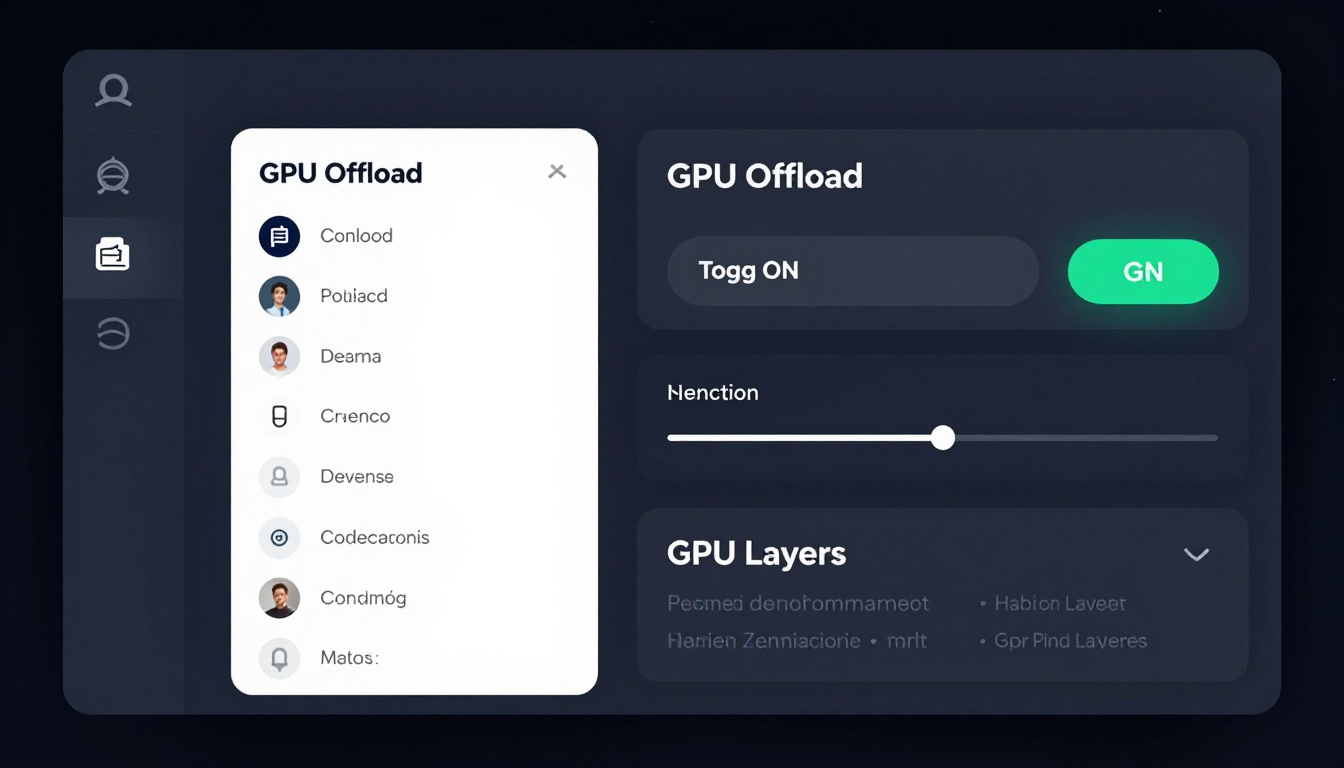
- Enable 'GPU Offload' and slide the 'GPU Layers' slider all the way to the right.
LM Studio will automatically adjust if it exceeds VRAM. - You are now ready to chat with the model!
5. First Inference: Running Llama 3.1 8B/70B
Let's confirm your setup works with a simple prompt.
Using Ollama (Terminal):
After running ollama run llama3.1:8b, you will see a prompt >>>.
Type your question:
>>> Write a short Python function that returns the factorial of a number.
The model should generate the Python code directly in your terminal.
Using LM Studio (GUI):
In the chat interface, with your Llama 3.1 model loaded, type the same prompt into the message box at the bottom and press Enter.
Write a short Python function that returns the factorial of a number.
The AI's response will appear in the chat window.
If you see a coherent code snippet, your local inference setup is working correctly.
6. Optimizing Performance on RTX 5060 Ti
To get the best speed (tokens/second) and manage your 16GB of VRAM, especially for the 70B model, consider these settings in tools like LM Studio or Text Generation WebUI.

- GPU Offload Layers (
n-gpu-layers):
This is the most critical setting.
It determines how many layers of the neural network load into your GPU's VRAM.
For the 8B model, you can offload all layers.
For the 70B model, you will need to experiment.
A good starting point for aQ4_K_Mquant is to offload around 24-28 layers.
The application usually shows you the estimated VRAM usage. - Context Size (
n_ctx):
This is the 'memory' of the model for a given conversation.
Larger context sizes use more VRAM.
The default is often 2048 or 4096.
Llama 3.1 can handle much more, but for a 70B model on 16GB VRAM, keep it below 8192 to avoid issues. - Quantization Level:
Use the highest quality quantization that fits comfortably in your VRAM.
For the 70B model, aQ3_K_Mmight give you enough headroom to offload more layers to the GPU than aQ4_K_M.
This could result in faster overall performance despite the lower precision. - Batch Size (
n_batch):
This setting processes prompts in chunks.
A value of 512 is standard.
Increasing it might improve throughput for very long prompts but also uses more VRAM.
7. Practical Use Cases
Now that you have a private AI, here are some things you can do:
- Code Generation & Debugging:
"I have a Python script that's throwing a 'KeyError'. Here is the code: [paste your code]. Can you identify the potential cause and suggest a fix?" - Text Summarization:
"Summarize the key points of the following article into five bullet points: [paste a long article]." - Private Conversational AI:
"Act as a brainstorming partner. I want to plan a weekend trip to the mountains. I enjoy hiking and good food. Can you suggest an itinerary, including potential locations and activities?"
8. Troubleshooting Common Issues
You might encounter some common problems.
Here are some solutions.

- Error:
CUDA error: out of memory(OOM):
- Cause: You are trying to load a model that exceeds your VRAM capacity.
- Solution 1: Use more aggressive quantization (e.g., switch from a Q5 to a Q4 GGUF).
- Solution 2: Reduce the number of GPU offload layers.
Let more of the model spill over into system RAM. - Solution 3: Reduce the context size (
n_ctx).
- Cause: You are trying to load a model that exceeds your VRAM capacity.
- Slow Inference Speed:
- Cause: Too many layers are running on the CPU (system RAM) instead of the GPU.
- Solution: Your GPU is the primary bottleneck.
Offload as many layers as your VRAM will allow.
If performance is still too slow for the 70B model, you may need to stick with the 8B model for real-time tasks.
- Cause: Too many layers are running on the CPU (system RAM) instead of the GPU.
- Model Fails to Load:
- Cause: The model file may be corrupted, or the application does not support its specific format or version.
- Solution: Re-download the model file and verify its checksum if one is provided on the Hugging Face page.
Ensure your tool (Ollama, LM Studio) is updated to the latest version.
- Cause: The model file may be corrupted, or the application does not support its specific format or version.
- NVIDIA Driver or CUDA Issues:
- Cause: The application cannot detect or properly use your GPU.
- Solution: Ensure you have the latest NVIDIA Game Ready or Studio drivers installed.
For more complex setups (like manual TGI), confirm your CUDA Toolkit is installed correctly and its version matches the framework's requirements.
- Cause: The application cannot detect or properly use your GPU.
9. Limitations of RTX 5060 Ti for Llama 3.1 70B & Future Outlook
It's important to have realistic expectations when running a 70-billion-parameter model on a mid-range consumer GPU.

Practical Limitations:
- Inference Speed:
Even when optimized, the inference speed for the Llama 3.1 70B model will be significantly slower than the 8B model or cloud-based services.
Expect speeds in the range of 5-15 tokens per second.
This is suitable for summarization or code generation but may feel slow for interactive chat. - Quantization Trade-off:
To make the 70B model fit, you must use low-bit quantization (e.g., 2, 3, or 4-bit).
This introduces a small but measurable loss in accuracy and nuance.
The model's responses might be slightly less coherent than its full-precision counterpart. - Context Window Limits:
While Llama 3.1 supports a massive context, you will be VRAM-limited.
Using a context window larger than about 8k tokens with the 70B model will likely lead to OOM errors.
Alternatively, it will require offloading almost all layers to RAM, making it impractically slow.
Future Outlook:
The field of AI optimization is advancing rapidly.
Future advancements in quantization (like 1-bit models), inference engines, and driver optimizations will continue to improve the performance of large models on consumer hardware.
The RTX 5060 Ti, with its 16GB of VRAM, is well-positioned to benefit from these improvements.
This will further blur the line between local and cloud AI capabilities.


